Notes In Confidence puts six distinct banners at the top of the page in different situations. Three of them are about your safety net and only show when something needs your attention; one tells you a new version of the app is ready; one tells you the site itself is unreachable; one tells you another device has just pushed new notes that this page does not yet show. They use five different colours so the urgency is readable at a glance, and they show in a fixed precedence order so you never see two at once competing for the same space.
This article is the index to all of them. Each section says what the banner looks like, when it appears, what action button it gives you, and where to read more.
Quick reference
| Colour | Banner | Severity | What it tells you |
|---|---|---|---|
| Red | Cannot reach Google Drive | Highest | Sync is broken; editing is paused until it recovers |
| Amber | Notes In Confidence is unreachable | High | The hosted site is down, but your data is fine and still syncing to Drive |
| Orange | Off-site Drive Backup is not enabled / failed / Local backup overdue | Medium | A specific hole in your safety net needs filling |
| Yellow | A new version is available | Medium | A new deploy is ready; click Reload to pick it up |
| Light blue | Data was updated from another device | Low | Sync just pulled new rows; refresh to see them |
| Blue inline toast | One-off toasts | Informational | Single-event notices ( Adopted new vault password from another device, Viewing existing note, etc.) |
Red: Cannot reach Google Drive — the read-only lockdown
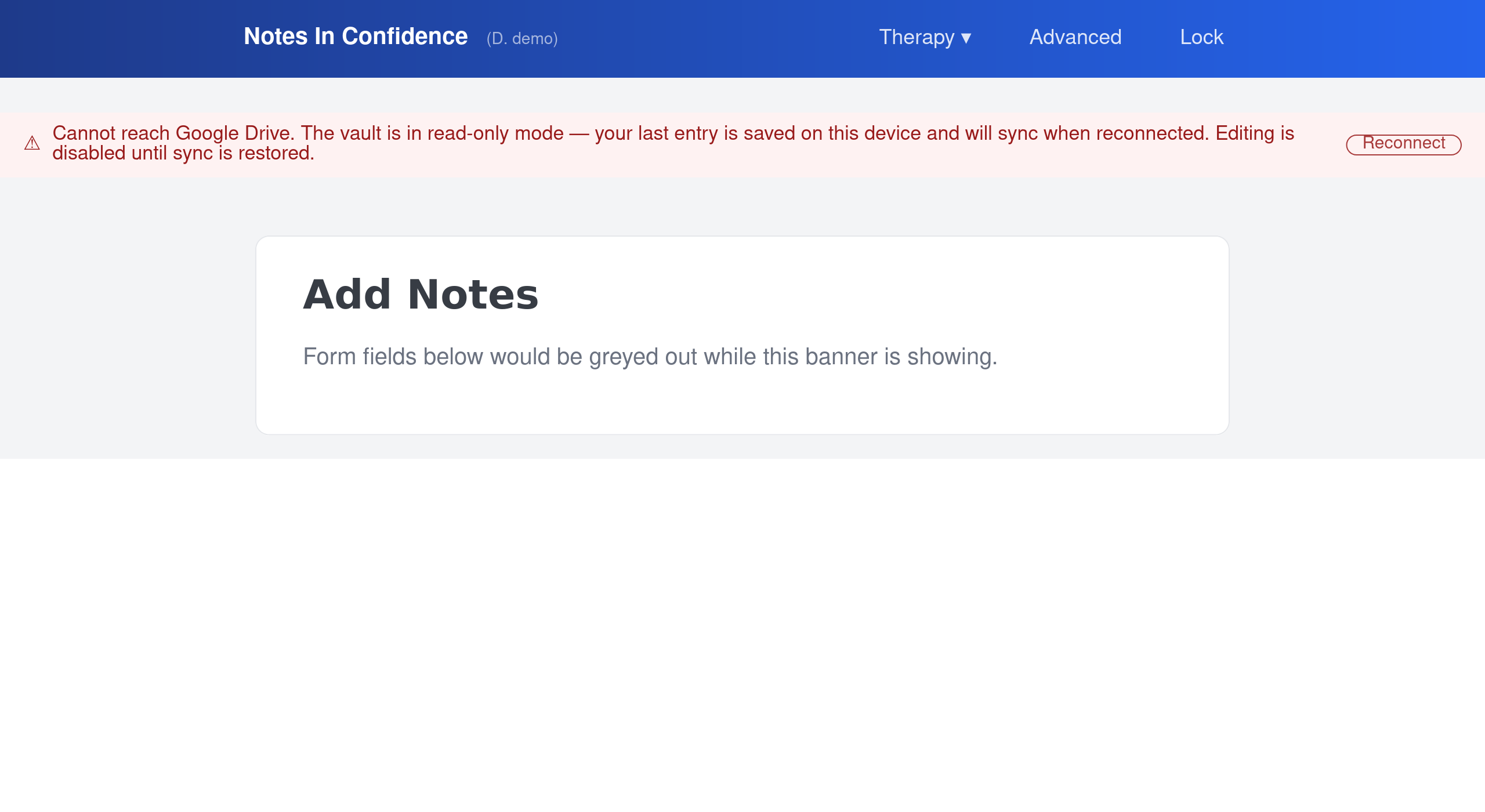
When it appears. Whenever Drive Sync stops working. Three causes: you revoked Drive permission in your Google Account, your sign-in token expired and silent re-auth failed, or the encrypted vault file in your hidden Drive folder has been moved or deleted.
What it says. "Cannot reach Google Drive. The vault is in read-only mode — your last entry is saved on this device and will sync when reconnected. Editing is disabled until sync is restored." with a Reconnect button.
What it does to the app. Every form on every page is greyed out. Reading and searching still work; editing is paused. This is deliberate — without sync, edits would exist only in this browser's IndexedDB, where a cleared cache or a private-browsing window would silently lose them.
What to do. Click Reconnect. If that does not clear the banner, open Advanced > Drive > Reconnect Google account for more diagnostic information. The full recovery walkthrough lives in Resolving the read-only banner.
Amber: Notes In Confidence is unreachable
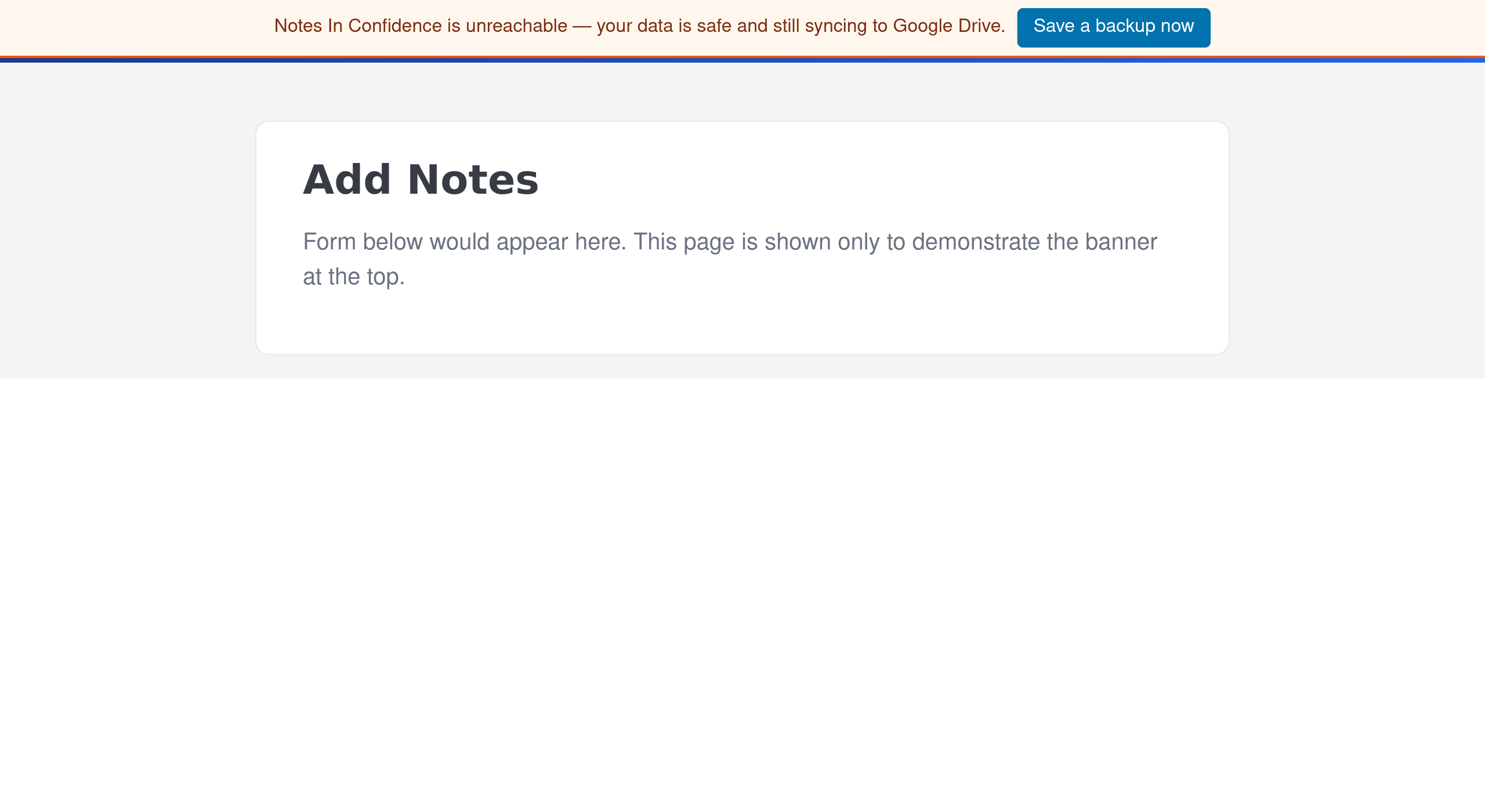
When it appears. When the app's version-check call to its own server fails and a probe to Google's API succeeds. That combination means the site is genuinely down, but you are still online and your Drive sync is still working. The banner is suppressed on the landing page, setup, connect, restore, and the already-open page — places where it would only confuse a visitor who has no vault to protect.
What it says. "Notes In Confidence is unreachable — your data is safe and still syncing to Google Drive." with a Save a backup now button if the vault is unlocked, or an Unlock to save a backup hint if it is locked.
What it does to the app. Nothing functional — your vault, the dashboard, the notes, Drive Sync, everything keeps working. The banner exists because if the site disappears for long enough you may want to grab a self-decrypting backup file proactively while you still can. The article Using your backup as a self-decrypting page covers what those files do and why they are useful if the site never comes back.
What to do. If you are unlocked, click Save a backup now. A tn-backup-YYYY-MM-DD-…html file lands in your Downloads folder, encrypted with your current password. Keep it somewhere safe (or let your synced Downloads folder mirror it to OneDrive / iCloud / Dropbox). If you are locked, unlock first.
Why this banner exists at all. Drive Sync is independent of our site — it talks directly to Google. So even if the operator's server is gone, your existing notes still sync between your devices through your own Drive. But the app code itself comes from our server, so a long outage means no new updates and eventually no new vault setups. The banner gives you a window to take an offline-openable backup before any of that matters.
Orange: the backup safety-net banner
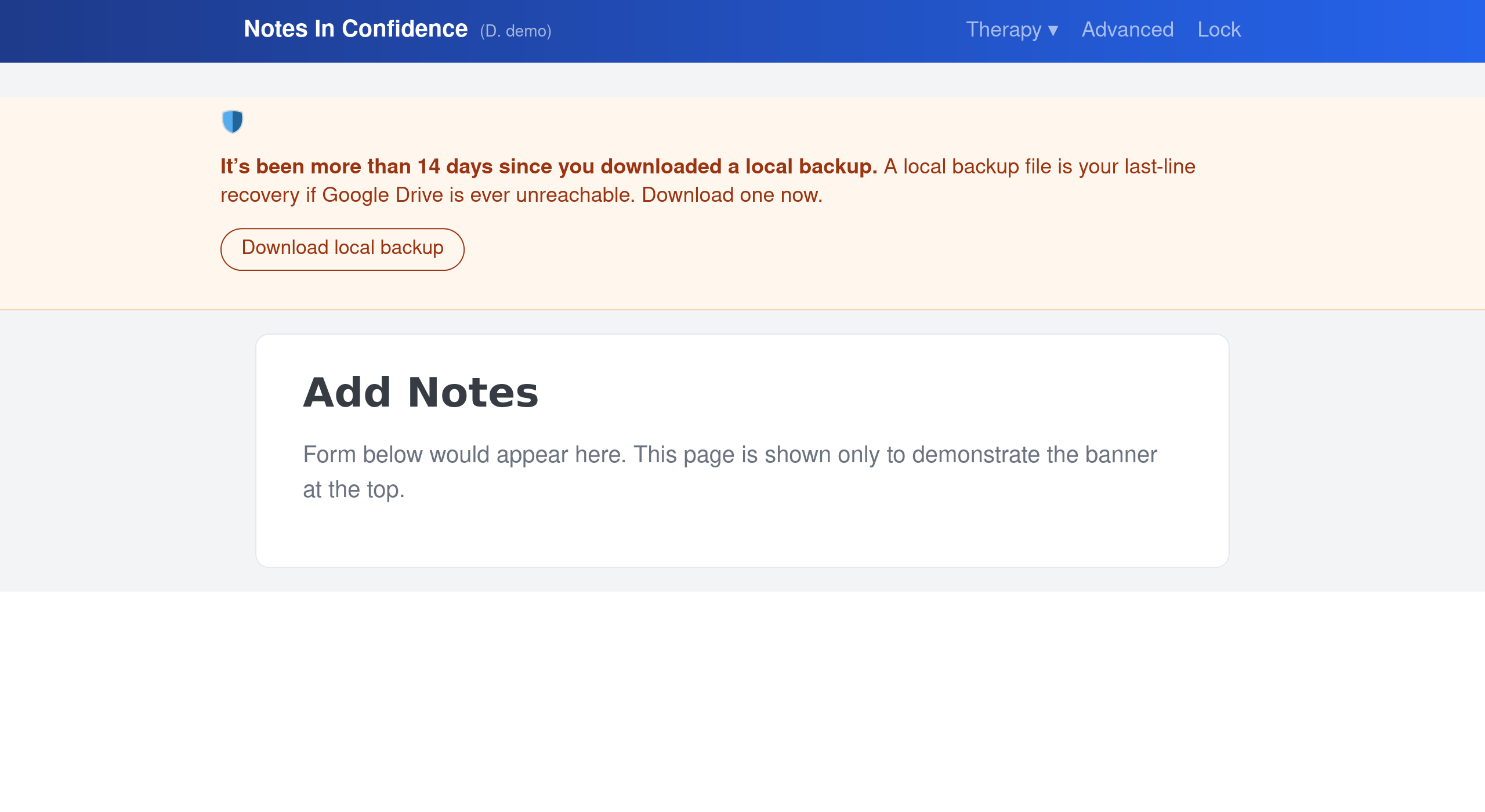
When it appears. When your backup safety net has a hole in it. Three independent triggers, in priority order:
- Off-site Drive Backup is not enabled. You have not turned on the seven-day Drive Backup, or have turned it off, or have revoked the
drive.filepermission. - Drive Backup last upload failed. The most recent automatic upload to your Notes In Confidence Backups folder hit an error (network drop, expired auth, Drive full).
- Your manual Local Backup is more than 14 days old, or you never took one. For new vaults this only fires after a 14-day grace period.
What it says. A short headline naming the specific problem, plus a Set up Drive Backup / Open Drive Backup / Download local backup button matched to the trigger.
What it does to the app. Nothing functional. It is a persistent nudge — there is no close button — and it only goes away when the underlying problem is fixed. Triggers 1 and 2 are silenced by acting in Settings; trigger 3 is silenced by taking a fresh manual backup.
What to do. Click the button. The article Sync, Backup and Local Backup, three different jobs explains why each of the three safety nets matters and Backing up, restoring, and opening a backup file walks through the mechanics.
Suppressed when red is showing. If the red read-only lockdown is on, this orange banner is suppressed — the lockdown is the urgent thing and the orange one would just stack on top noisily.
Yellow: A new version is available
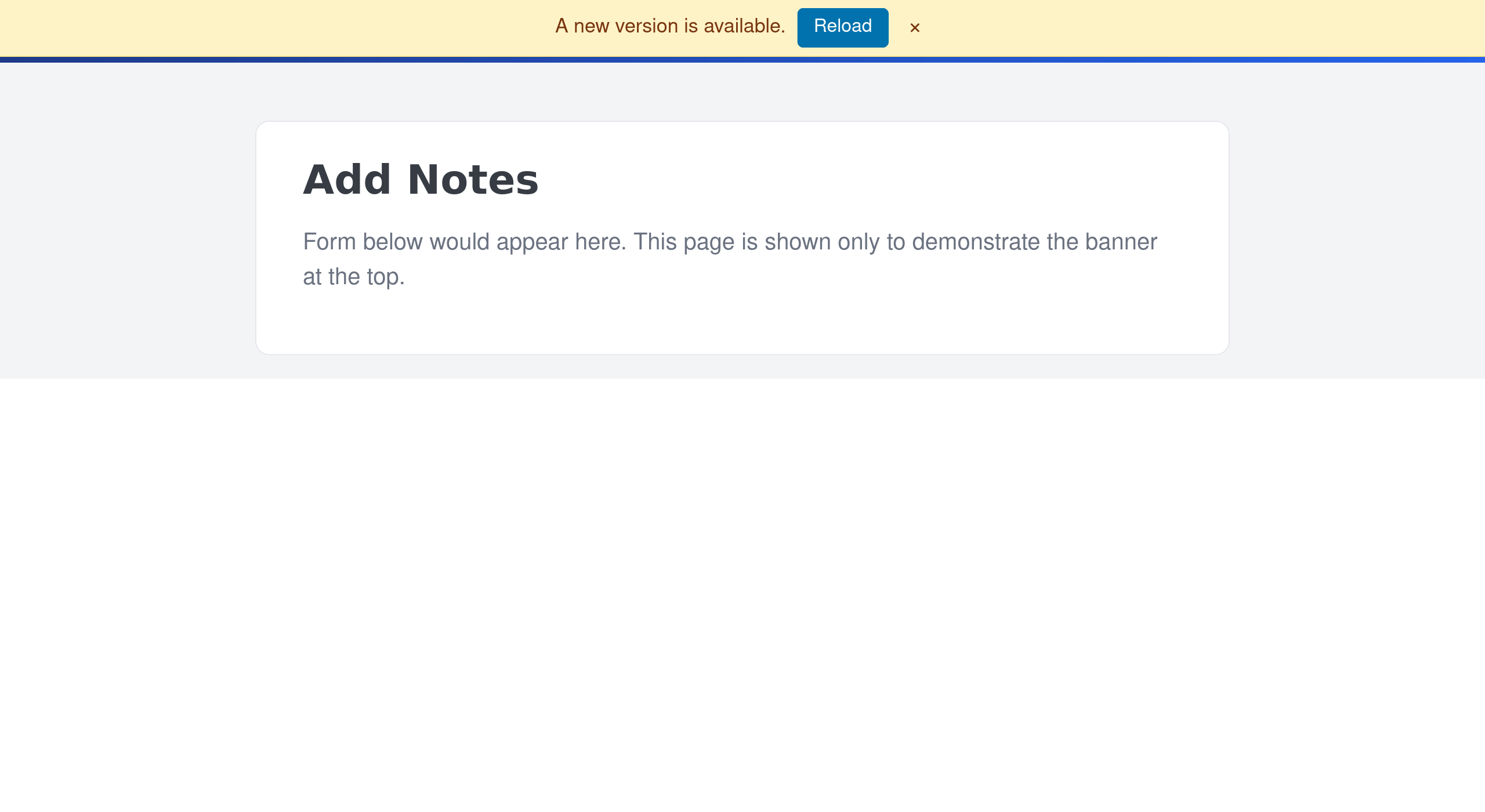
When it appears. When the app polls its own /version endpoint and finds the deploy on the server is newer than the version that this browser currently has loaded. Polling runs every 30 minutes and also on every tab focus change. The same banner also appears when the service worker detects a new app shell waiting to take over (an installed PWA scenario; see Installing Notes In Confidence on your device).
This banner only appears on authed pages. On pre-auth pages — the landing page, unlock, setup, connect, restore, already-open, the soft-launch gate, the staging notice — a new version is picked up silently with no banner, because there is no in-progress work on those pages that the user might lose to a sudden reload. You only ever see the yellow banner once you have unlocked the vault and are inside the app shell.
What it says. "A new version is available." with a blue Reload button and a small × close button.
What it does to the app. Nothing. The current version keeps working. The banner is informational.
What to do.
- Click Reload to pick up the new version. The app flushes any pending Drive sync first (up to a three-second cap), then reloads cleanly. If you have unsaved typing in any form, the app prompts you before throwing it away.
- Click × to dismiss. The banner stays dismissed for the rest of this tab session, but will reappear if the server reports an even newer version later. It will also reappear the next time you open the app in a new tab.
If you want to see what changed before clicking Reload. The small build chip (D. xxxxxxxx) next to the Notes In Confidence title in the header is clickable on every authed page and opens What's new in a new tab. You can read the entry for the latest deploy there before deciding to reload. The chip works whether or not the yellow banner is showing, so you can also use it to check for recent changes any time you are curious.
Special case for installed apps. When the service worker has a new version waiting (different from a server-side bump), Reload sends a SKIP_WAITING signal to the worker so the new app shell takes over immediately. The reload happens automatically once the worker swap completes.
Light blue: Data was updated from another device
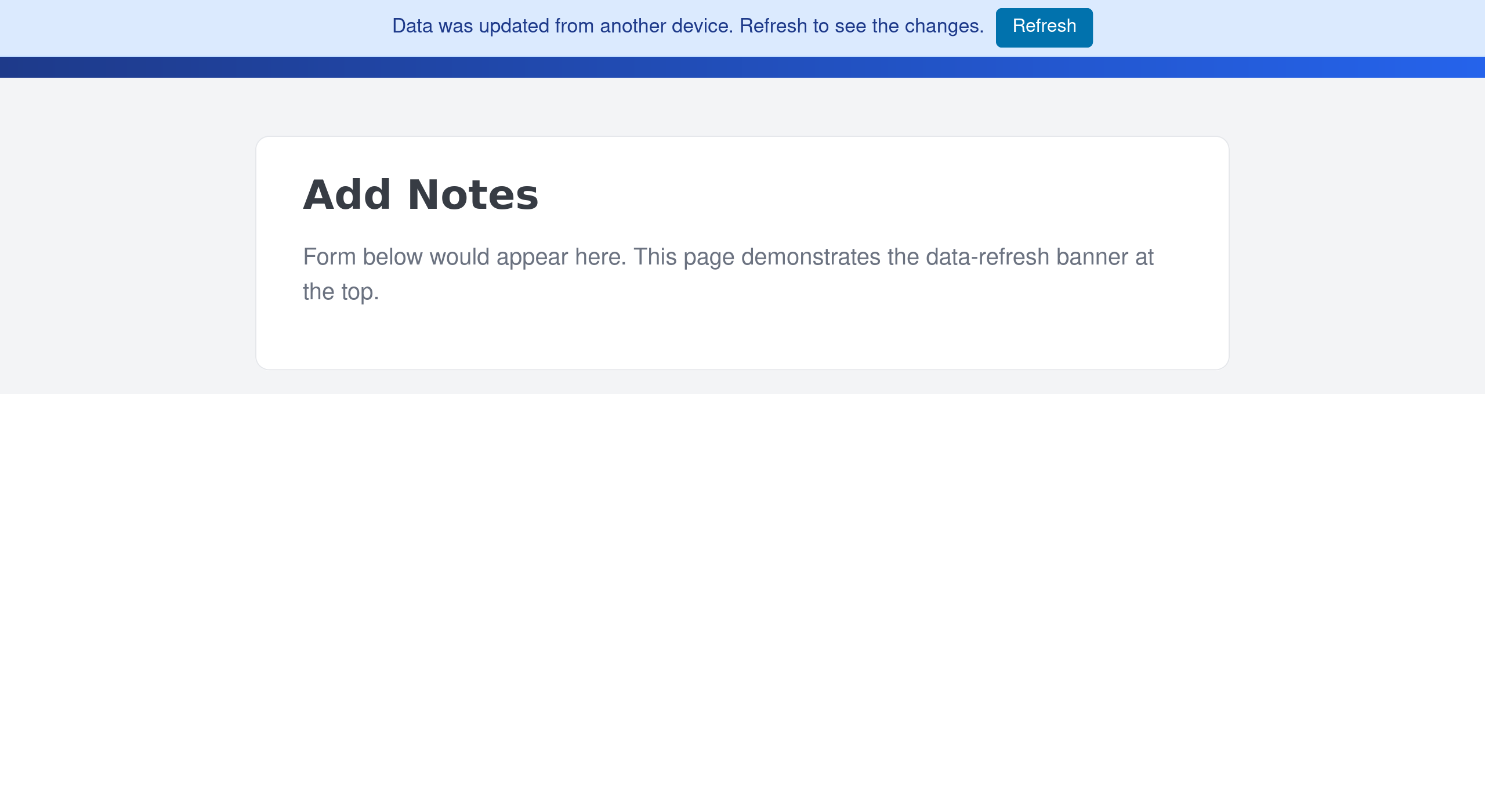
When it appears. Right after a Drive Sync pull has merged new rows into this browser's local store from another device — a session note you wrote on your laptop, a client record you added on your phone, a setting you changed on the clinic computer. The page you are currently looking at was rendered before that merge, so its lists do not yet show the new rows.
What it says. "Data was updated from another device. Refresh to see the changes." with a single Refresh button.
What it does to the app. Nothing immediately. The new data is already in your local store. The banner exists because the page you are looking at (a notes list, a client list, the dashboard) reads its contents at load time and does not re-render automatically when a sync arrives. Click Refresh and the page reloads to pick up the merged state. The reload runs the same flush-then-reload path as the yellow update banner, so any in-progress typing prompts you to confirm first.
What to do. Click Refresh at a moment that suits you. There is no urgency — the data on disk is already up to date, the banner is only there to remind you that the display is behind. The banner has no dismiss button because the only thing that should clear it is a successful refresh.
Why this exists. The authed list pages (dashboard, notes, clients, supervisees, supervision notes) build their views from module-level state populated at page-load time. Rewiring every list to subscribe to merge events would touch half a dozen render paths; a single banner with one Refresh button is the cheaper and clearer answer. The article Reading the Recent sync activity panel shows the underlying pull events in the Changes tab.
Blue: one-off informational toasts
These are short, light-blue boxes that appear inline rather than fixed at the top, and disappear by themselves on the next navigation.
Examples. "Adopted new vault password from another device" after the cross-device rotation prompt. "Viewing existing note. Click Edit to make changes." when you load a previously saved note. "Defaults saved" after you click Save defaults in Settings.
What it does. Disappears on the next navigation, or by clicking elsewhere. Not a persistent banner — included here so the corpus of coloured rectangles at the top of the app is complete.
Precedence — what shows when more than one would otherwise apply
When more than one banner has reason to show, only the higher-precedence one is visible, in this order: red > amber > orange > yellow > light blue. The reasoning: the red lockdown supersedes everything because nothing the user can do about the orange or yellow matters until sync is back; the amber unreachable banner takes priority over the orange because if the site is gone the user should grab a backup right now, not be reminded to enable scheduled ones; the orange takes priority over the yellow because a missing safety net is more urgent than a deploy update; the light-blue data-refresh banner is the lowest priority because no action is urgent — the data is already on disk.
The blue inline toasts are independent — they appear briefly underneath whatever persistent banner is showing and disappear on their own.
A note on what these banners are not
None of the banners do anything destructive. None of them write to your vault. None of them call home with any of your data — they are purely client-side signals. The yellow banner is informational; the amber, orange, and red banners exist to give you one click that fixes the underlying problem. If you see a banner you do not understand, hovering over its action button is always safe — the action only fires when you click it.
What to do next
If you are seeing the red lockdown banner right now, Resolving the read-only banner covers the recovery paths.
If you are seeing the amber unreachable banner, take the offered backup, and read Using your backup as a self-decrypting page to understand exactly what that file gives you (it is openable forever, even if our site never comes back).
If you are seeing the orange backup-safety banner, Backing up, restoring, and opening a backup file explains the three layers of safety net and how to satisfy them.
If you are seeing the yellow update banner and want to know what Reload does under the hood, Installing Notes In Confidence on your device covers the service-worker update path in detail.