You can install Notes In Confidence as a real local app on Windows, macOS, Linux, Android, ChromeOS, iPhone, or iPad. Once installed, it opens in its own window from a desktop or Home Screen icon, the browser will not silently evict its local data, and it keeps working even if you are temporarily offline. This article walks through what installation does, where to find the option, and the small differences between browsers.
Google Drive is still required after install. Installing the app does not move you to local-only storage. Your notes still sync to your own Google Drive in encrypted form exactly as they did before; what changes is the icon and window chrome, plus offline access to the app shell. The encryption design described in How Notes In Confidence keeps your notes private is unchanged.
What "installing" actually means
In modern browsers, a web app can declare itself installable via a small file called a manifest. Notes In Confidence ships such a manifest, plus a service worker that caches the app shell. The combination gives you three concrete benefits over running the app as a regular browser tab.
A real shortcut on your operating system. A clickable app icon on your Windows Start menu, your macOS Applications folder or Dock, your Linux app launcher, your Android or ChromeOS home screen, or your iPhone or iPad Home Screen. The app opens in its own window without the browser's address bar or tabs around it.
Storage your browser will not silently evict. Browsers reserve the right to clear your IndexedDB if disk gets tight or you do not visit the site often. Installing the PWA flips this to persistent storage — browsers treat installed apps as user-promoted content and stop silently clearing them. (On Chrome and Edge this is automatic on install; on Firefox and Safari, the protection is similarly stronger.)
Offline access to the app shell. The service worker caches every page route of the app, every JS module, the CSS, and the icons. So if your network drops, the app still opens and unlocks your local vault. Google Drive sync is paused while you are offline and resumes when the connection comes back, which the read-only banner indicates clearly.
What does not change when you install: your vault, your password, your Google account connection, your Drive Sync and Drive Backup files. They are all the same as they were before. The installation only changes how the app is launched and where its data is stored on the device.
Where the install option lives
Open Advanced > Install. This tab was added recently and sits between Backup and Export in the Settings navigation. The panel detects your browser and shows one of four cards:
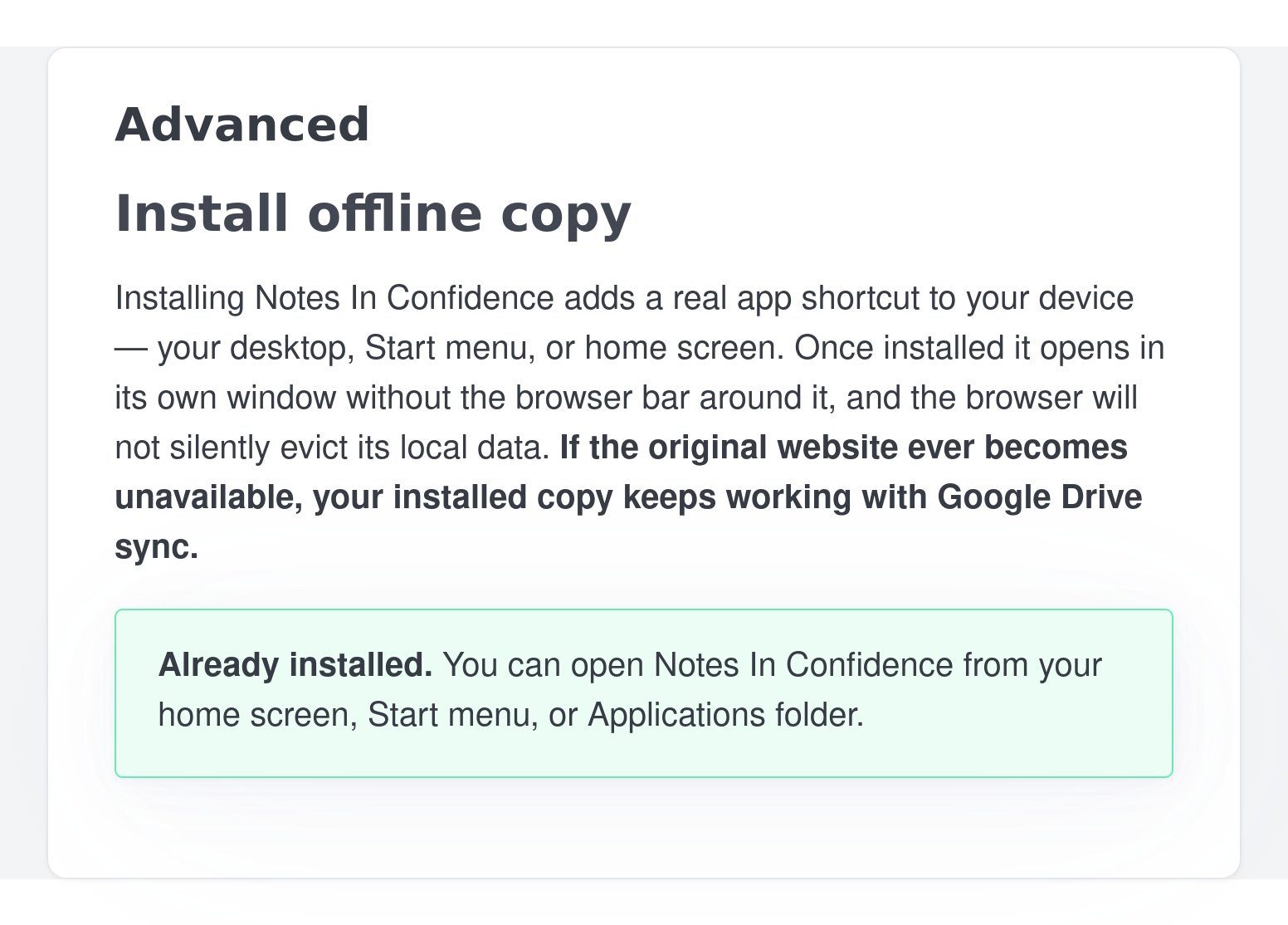
- Already installed — green card. The app is installed in this browser already.
- Install available — neutral card with a primary button. Click Install Notes In Confidence and the browser shows its native install dialog. Confirm it.
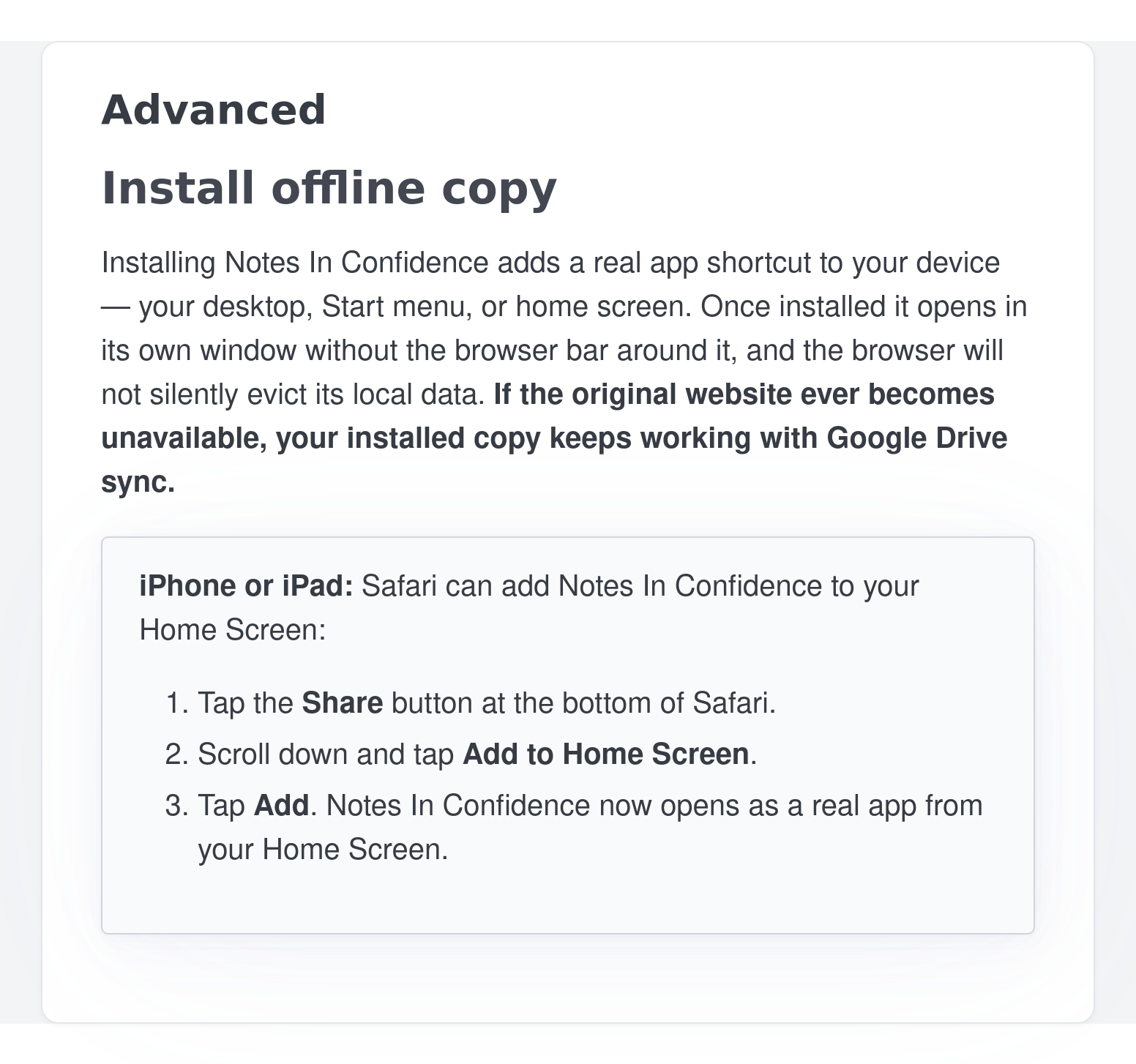
- iPhone or iPad — neutral card with three numbered steps for the iOS Safari Share → Add to Home Screen path.
- Browser doesn't currently offer the install option — neutral card with fallback advice.
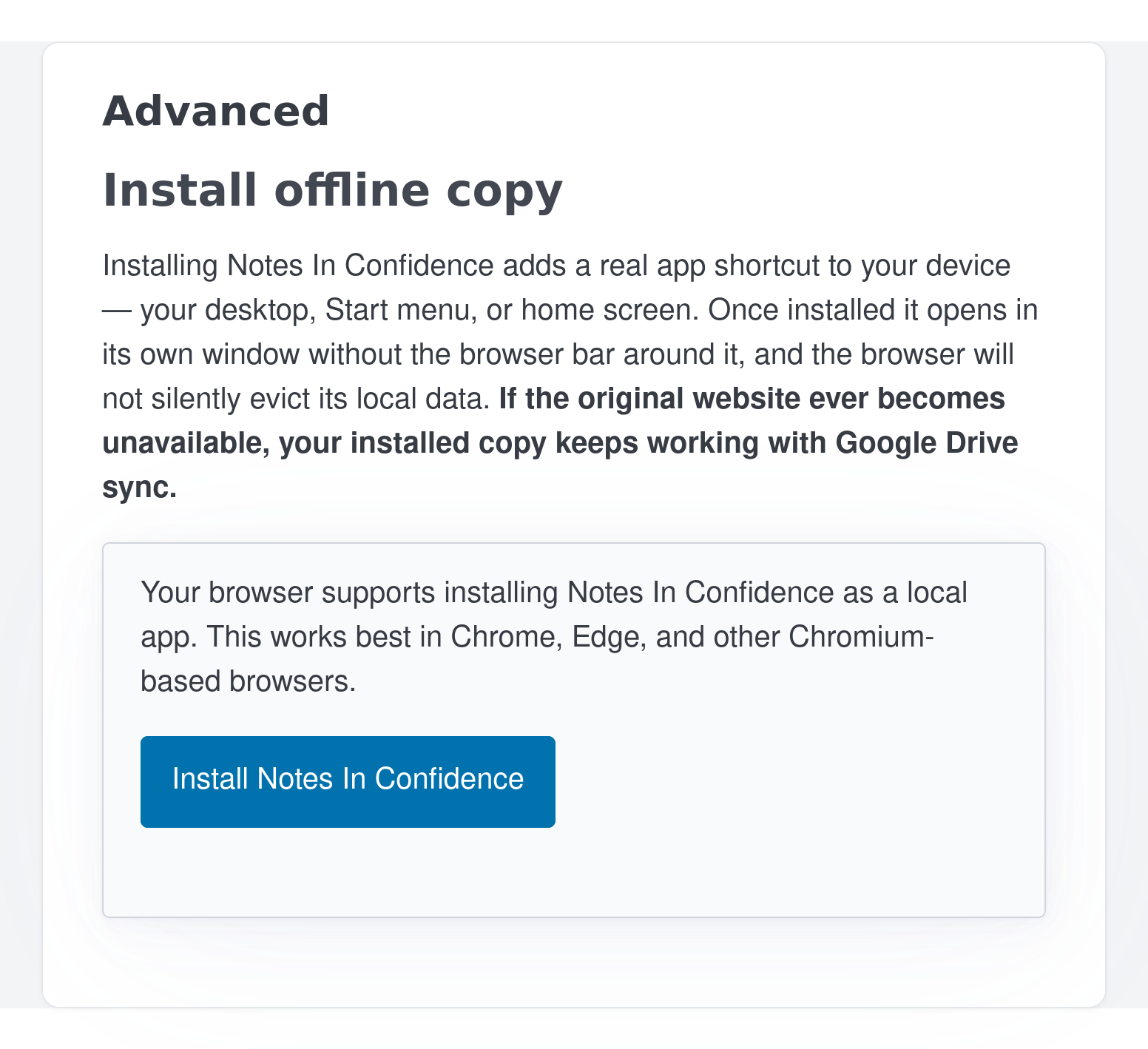
On iPhone or iPad Safari, the same tab looks like this instead — Apple disabled the standard install API, so the path goes through the share sheet:
Once you have installed the app, the next time you visit the Install tab from any browser you used to install, you will see this:
Browser-by-browser walkthrough
Chrome (desktop), Edge, Brave, Arc, Vivaldi, Opera, ChromeOS, Android Chrome. Open Advanced > Install. The Install available card will be present. Click Install Notes In Confidence. The browser's native install dialog appears with the app's name, icon, and description; confirm. The app opens in its own window straight away, and you will find the new shortcut where your operating system normally puts new apps (Start menu on Windows, Applications folder on macOS, the launcher on ChromeOS, the home screen on Android).
Firefox. Firefox supports a similar install flow but currently does not surface the Install prompt through the same API the panel uses on Chromium browsers. The Install tab will show the unsupported-browser fallback card. The practical path: open Firefox's main menu, look for Install Notes In Confidence (the wording changes per Firefox version). On Android Firefox the option is in the three-dot menu as Install; on desktop Firefox it appears in the address bar as a small home-with-plus icon when the manifest is detected.
Safari on macOS. macOS Safari can install the app from its own menu: File > Add to Dock. The shortcut lands in your Dock and opens in its own window.
Safari on iPhone or iPad. Tap the Share button at the bottom of Safari, scroll down to Add to Home Screen, then tap Add. The icon goes onto your Home Screen and the app opens as if it were a native iOS app. The Install tab in Advanced gives you the same instructions on screen, so you do not need to remember them.
What changes after install — and what does not
Same vault. The installed app uses the same IndexedDB as the browser version on this device, because they are the same origin. Notes saved before installation are there immediately after installation.
Same Google account. Drive Sync uses the same OAuth grant you authorised during initial setup. You do not need to sign in again. Drive Backup writes to the same Notes In Confidence Backups folder of your visible Google Drive.
Same encryption. Your password is the only key. PBKDF2 600,000 rounds and AES-256-GCM run inside the same browser engine as before. Installation does not weaken or strengthen the encryption — it changes the wrapper, not the inside.
Different window chrome. Installed apps open in a standalone window with no browser address bar and no other tabs. This makes the app feel like a native application and removes the temptation to navigate away.
Different update flow. Updates arrive via the service worker. When a new version is deployed, you will see a yellow A new version is available banner across the top of the app with a Reload button. Clicking Reload installs the new version cleanly. The article Banners at the top of the app covers this banner in detail.
Different offline behaviour. The app shell is cached, so the app opens and unlocks even when the network is down. Drive Sync is paused while offline; the red read-only banner shows when sync cannot reach Google, and editing is paused until the connection comes back. Reading and searching your existing notes works regardless. The article Resolving the read-only banner covers this state.
The iOS sign-in dialog on unlock
There is one iOS-specific dialog worth knowing about. On iPhone and iPad, both inside Safari and inside the installed Notes In Confidence PWA, Apple's Intelligent Tracking Prevention blocks the silent refresh of Google sign-in tokens that the app uses on every other browser. The practical effect: after you type your vault password and click Unlock, the app pauses and shows a small follow-up dialog:
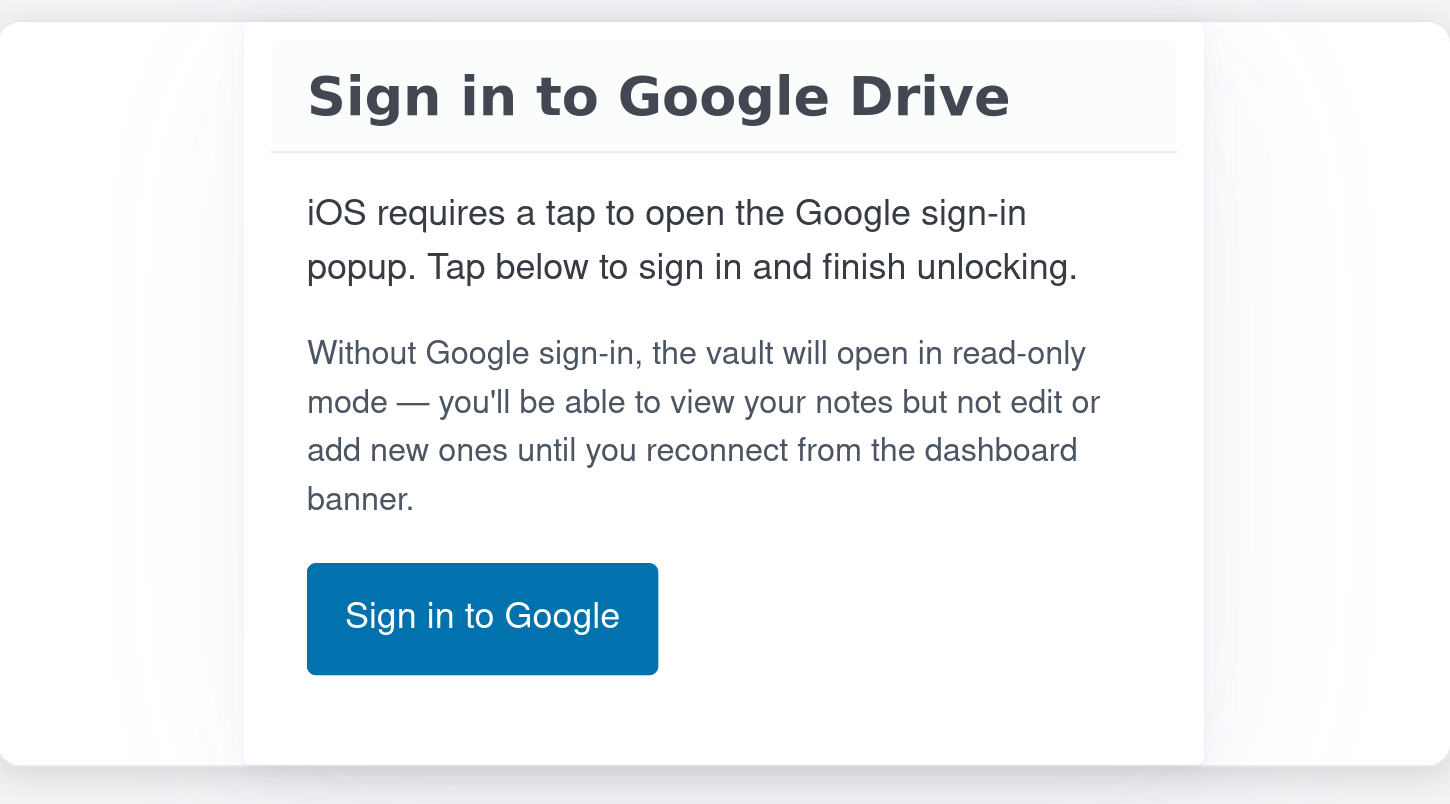
Sign in to Google Drive. iOS requires a tap to open the Google sign-in popup. Tap below to sign in and finish unlocking.
Without Google sign-in, the vault will open in read-only mode — you'll be able to view your notes but not edit or add new ones until you reconnect from the dashboard banner.
What to do. Tap Sign in to Google. The standard Google sign-in popup opens, you confirm the account, and the dashboard loads with sync working normally. The dialog does not interrupt every iOS unlock — it only appears when the cached Drive token has expired or is missing, which in practice is most unlock events because iOS clears those tokens aggressively.
If you dismiss it (Esc on a keyboard, tapping the backdrop, or closing the dialog without signing in), the vault still opens — just in read-only mode. The red Cannot reach Google Drive banner appears at the top of the dashboard with a Reconnect button, and from there one tap finishes the sign-in. You will not lose any local data; new edits are only paused until you reconnect.
Why this only happens on iOS. Other browsers (Chrome, Firefox, Edge, desktop Safari, Android Chrome) use a silent iframe-based token refresh that does not require user interaction. iOS Safari and the iOS PWA standalone mode both block that iframe, so the only reliable way to re-acquire a Drive token there is a tap that the browser recognises as a fresh user gesture. This dialog is what provides that tap. There is no equivalent step on any other platform.
A note for iPhone and iPad users about typing
Spellcheck and the in-app autocomplete (the one that suggests sentences learned from your own past notes) both work on iPhone and iPad now, including when the app is installed to the Home Screen as a PWA. Earlier in the beta there was an iOS-specific quirk where the suggestion list could vanish before the tap registered, and where the bundled spellcheck dictionary did not load inside the standalone PWA window. Both have been fixed; if you set up the app a while ago and remember either of those problems, they are no longer a problem.
Uninstalling
Chromium browsers (desktop). Open the installed app. Click the three-dot menu in the window's top right and choose Uninstall Notes In Confidence. Confirm. The shortcut is removed; your local vault stays where it is unless you also clear browser data for the site.
iOS Safari. On the Home Screen, long-press the Notes In Confidence icon and choose Remove App > Delete from Home Screen. The shortcut is removed; your vault stays in Safari's storage.
Android Chrome. Long-press the app icon on your Home Screen and drag to Uninstall, or open Settings > Apps and uninstall from there.
macOS Safari. Drag the Notes In Confidence app from your Dock to the Trash, or right-click in Applications and choose Move to Bin.
Uninstalling never wipes your vault by itself. If you also want to remove your local data, do so deliberately via Advanced > Danger Zone > Delete Local Vault before uninstalling — the article Deleting your vault — the Danger Zone options covers that path.
The kill-switch — honest disclosure
If the operator ever needs to roll back a botched deploy or remove the installed-app behaviour entirely, the service worker can be replaced with a kill-switch worker that unregisters itself and clears its caches on the next visit. From the user's perspective: a one-time reload of the app the next time you open it, after which Notes In Confidence works exactly like a regular browser tab again. Your vault and Drive sync are untouched.
This mechanism exists because installed PWAs are sticky — they survive browser updates and stay registered until explicitly removed — so a way to retire a buggy service worker without making users do anything manual is necessary. It does not run in normal operation; if you never see this happen, that is the normal case.
What to do next
If you have not yet finished setting up your vault, the Setting up your vault for the first time article is the right place to start. If the installed app's update banner has just appeared and you are wondering whether to click Reload, the Banners at the top of the app article covers all the coloured banners in detail. If you ever want to wind back the installation, the Uninstalling section above is the short version.