The Recent sync activity panel lives at the bottom of Advanced > Drive. It is the first place to look when you want to know whether your last few changes actually reached your Drive, or whether something is silently failing. Most users never notice it. The ones who find it usually wish they had earlier.
To open the panel: go to Advanced > Drive, scroll past the status card, and click the arrow next to Recent sync activity.
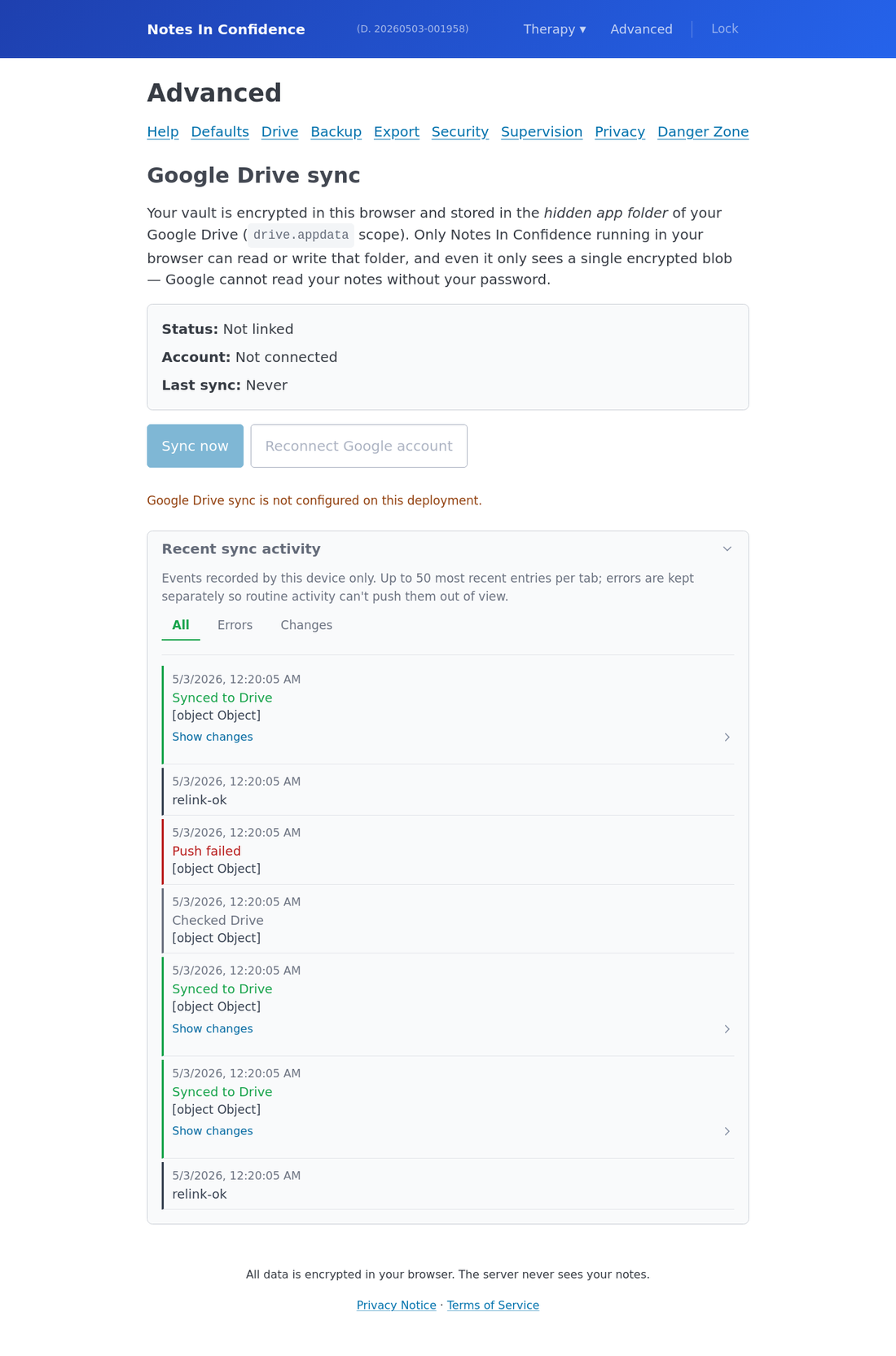
What the panel actually records
Everything in this panel is recorded by this device only. It is not a global view of your Drive — it is a log of what happened in this browser tab over the last few hours or days. Activity from your phone or your work computer would have its own panel on those devices.
Storage is capped at fifty entries per tab for All and Errors, and one thousand entries for Changes. Older entries fall off the bottom as new ones come in. Errors live in their own store so a burst of routine activity cannot push a single important error out of view.
The panel is encrypted. Every entry is encrypted with your vault key the moment it is recorded, and decrypted only when you open the panel. Lock the vault and the entries become unreadable bytes again. Wipe the local vault and the activity log goes with it.
The three tabs
All is the chronological feed. Every sync event the engine produced, in the order it happened. Successful pushes, retries, errors, manual flushes, all interleaved. Useful for "did anything happen in the last ten minutes" and for following a single sequence of events end to end. The screenshot above shows a typical sequence: a Drive reconnect, a couple of successful pushes, a check against Drive, a push failure, another reconnect, and a successful retry.
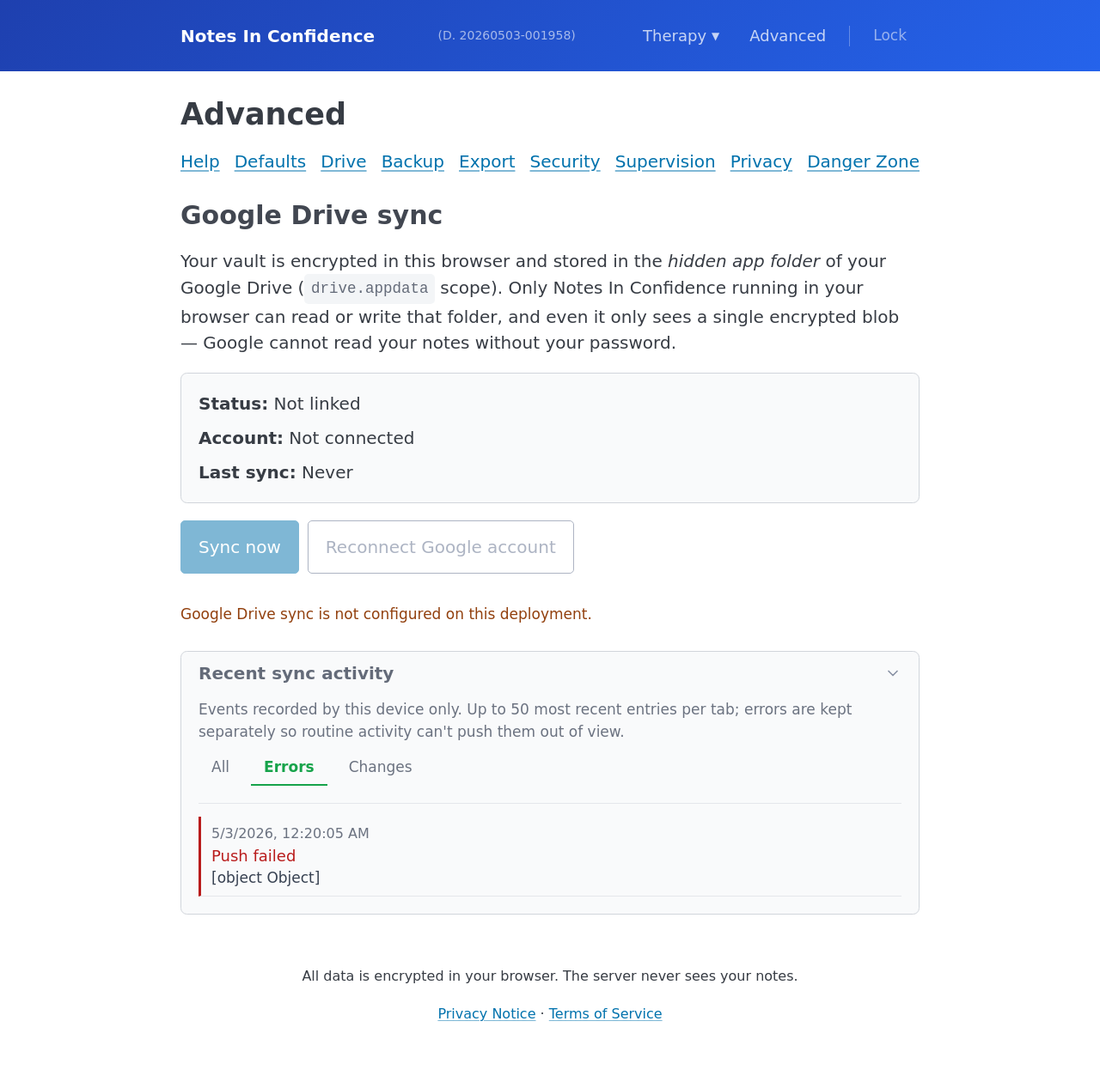
Errors is filtered down to the entries that mean something has gone wrong. Three event kinds qualify as errors and get mirrored here: push-error, rotation-detected, and duplicate-detected. Each is explained below.
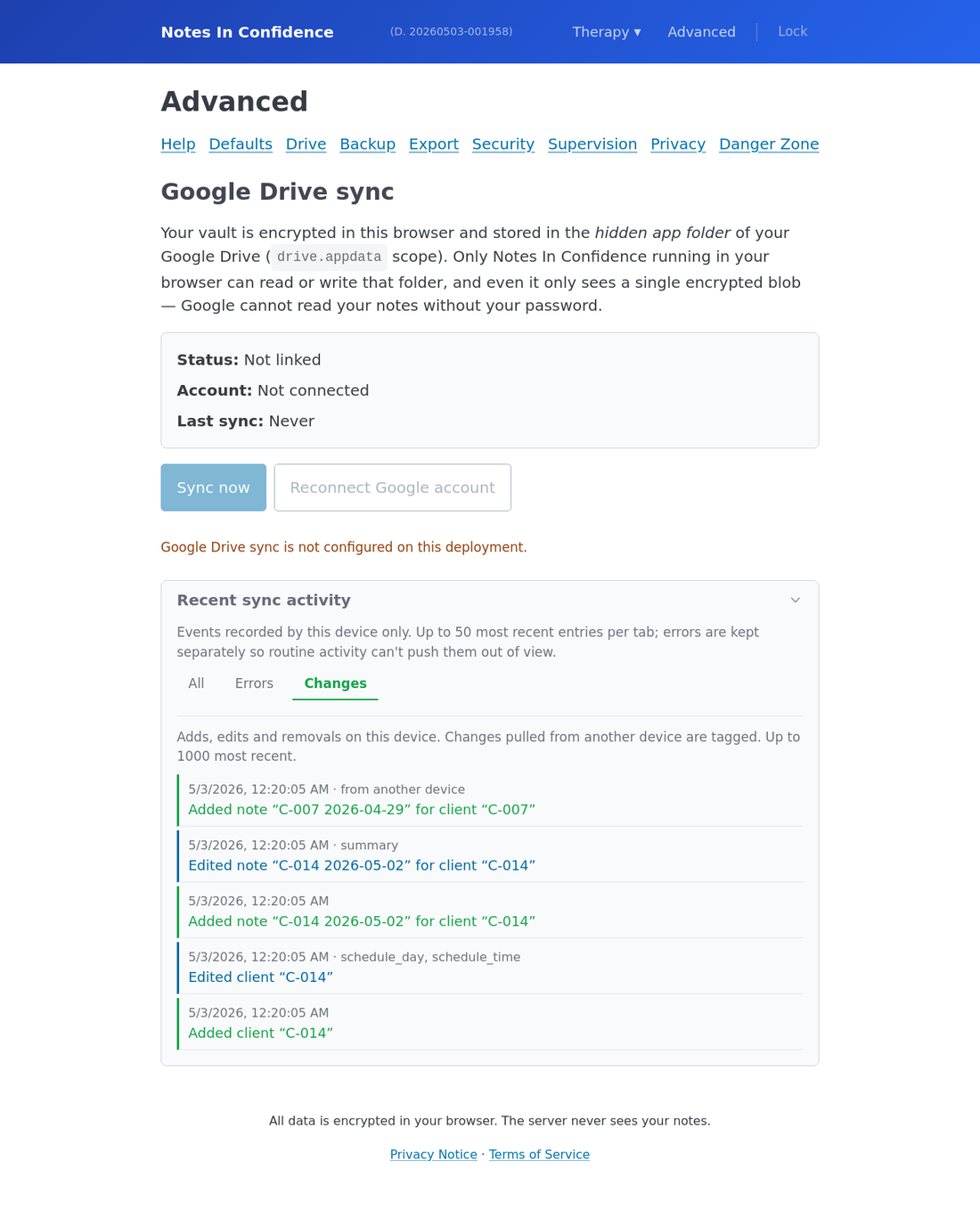
Changes is the per-record audit log. Every add, edit, remove, deactivate, and reactivate to a client, supervisee, or note is recorded with a timestamp and the source (local edit, pull-merge from another device, password-rotation adoption, restore from backup). Edits and deletions of individual entries in a client's deactivation History modal also appear here. Useful for "I think I deleted that client by accident" or "when did I last touch this client's record".
What each event kind means
push-ok — A batch of changes was successfully written to Drive. Coalesced: rapid pushes get rolled up into one entry showing how many records changed.
push-error — A push to Drive failed. The detail shows the underlying reason in plain English (token expired, file not found, network unavailable). This is the entry that usually accompanies a read-only banner.
pull-ok — A pull from Drive completed. The detail mentions how many rows were merged in from another device (zero is normal for a single-device user).
pull-error — A pull from Drive failed. Less common than push-error; usually network-related.
rotation-detected — A different device changed the vault password. This entry is what triggers the Password changed on another device prompt the next time you unlock.
duplicate-detected — Two vault files appeared in your hidden Drive folder. Should not happen in normal use; usually means manual editing in Drive.
unlink-ok — You revoked the app's Drive permission, deliberately or by accident.
relink-ok — You reconnected after an unlink or token expiry.
Reading the Errors tab when something is wrong
When the read-only banner is showing, open the Errors tab. The most recent entry is the one you want. It will look something like:
push-error · 2 minutes ago · Drive authorisation expired. Reconnect required.
The error message tells you what to fix. Authorisation expired means click Reconnect on the banner. File not found means your vault file is missing in Drive (rare; recovery is to restore from a Local Backup). Network unavailable means wait, then click Reconnect.
If the error is something the activity panel cannot translate into plain English ("HTTP 500", a stack trace fragment), the Diagnostic log in Advanced > Danger Zone has more detail.
Reading the Changes tab when you want to retrace your steps
The Changes tab is a per-record audit. Each entry shows what happened, to which record, when, and from which source.
edit · Client C-007 · fields changed: schedule_day, schedule_time · source: local · 10 minutes ago
This is the tab to open when you want to be sure something saved, when you want to know whether a change came from this device or arrived from another, or when you want to walk back through what you did in a session.
Pull-merge entries are tagged with source: pull-merge. These are the rows that arrived from another device in the most recent unlock or sync. Restore-imported rows are tagged source: restore. Password-rotation-adopted rows are tagged source: rotation-adopt.
What is and is not in the panel
Is. Every sync event the engine produced. Every change to a clinical record. Every error the engine surfaced. Timestamps. Source tags. Underlying error messages.
Is not. The contents of any note or client record. The text you typed. The previous values of fields you changed. Anything that would let someone reading the log reconstruct a clinical session. The panel is deliberately metadata-only.
When to clear the panel
You cannot, deliberately. The events fall off the bottom on their own as new ones come in (50 most recent for All and Errors). Changes are retained for the last 5 days, with a hard ceiling of 1000 entries if you somehow rack up more than that in 5 days. The only way to wipe everything manually is to delete the local vault entirely from Advanced > Danger Zone > Delete Local Vault, which wipes everything else too. There is no "clear log" button by design — the log is most useful precisely when something is going wrong, and a button to clear it would be the first thing a confused user clicked.
Related
If the activity panel is showing errors, Resolving the read-only banner covers the recovery paths. If you want a deeper picture of how Sync, Backup and Local Backup fit together, Sync, Backup and Local Backup, three different jobs explains the full safety-net story.