On the hosted service at notes.notesinconfidence.uk, Google Drive is required for setup — there is no local-only mode. You sign in with Google once, grant two narrow permissions, and from that moment on your encrypted vault is stored in your own Google Drive. Drive carries two distinct copies: a live Sync file in a hidden app folder (kept up to date as you work) and a Backup file written into a visible Notes In Confidence Backups folder of your Drive every seven days (a self-decrypting copy you can open on any browser, on any computer, even if this website disappears). Both copies are encrypted in your browser before they leave your device.
The setup itself takes about three to five minutes. The benefits last for as long as you use the app.
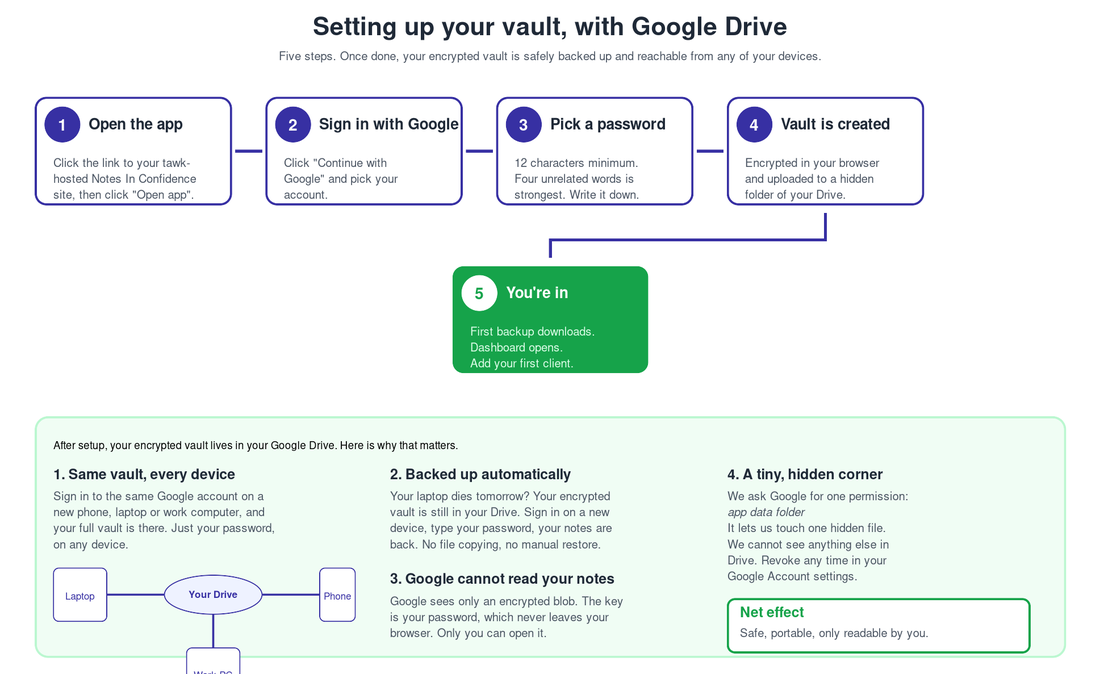
Why Google Drive matters
Three things become true the moment your vault lands in your own Google Drive.
Your data is already backed up. If your laptop dies, gets stolen, or simply will not turn on tomorrow morning, your vault is not gone. It is sitting in your Google Drive, encrypted, exactly as it was when you last saved a note. Sign in on a new device with the same Google account, type your password, and your notes are back. No file copying, no manual restore, no panic.
You can use the app on every device you own. Open Notes In Confidence on your laptop in the morning, on your phone between sessions, on a desktop at the clinic in the afternoon. As long as you sign in to the same Google account on each of them, the same vault is there, kept up to date for you. A note you save on your phone shows up on your laptop the next time you unlock it.
Nobody else can read your notes, including Google. Drive holds your vault as an encrypted blob. The only key that can decrypt it is the password you carry in your head. Your password is not sent to Google, not sent to us, not stored anywhere outside your own browser's memory. So although Google can see that the encrypted file exists, Google cannot read what is inside it. Neither can we. Only you, with your password.
There is one trade-off worth being honest about: there is no password reset. Because nobody else holds your key, nobody else can hand it back to you. If you forget your password, your data is unrecoverable.
What we ask Google for, and what we do not
When you click Continue with Google, Google asks you to grant the app two narrow Drive permissions in a single consent screen. Both are needed for the app to work, and both are scoped tightly to files this app creates itself.
The first permission is the hidden app folder (drive.appdata). This is what carries Drive Sync. It lets the app read and write a single file in a hidden, per-app area of your Drive that does not appear in your normal Drive view. Even you cannot browse to it. It is reserved for this app's encrypted vault file.
The second permission is the visible backup folder (drive.file). This is what carries Drive Backup. It lets the app create and update files only inside a folder it makes for itself, called Notes In Confidence Backups. The app cannot see or touch any other file in your Drive, only the ones it created in that folder.
Together these two permissions are exactly what the app needs and nothing more. We cannot list your other folders, read your shared documents, or open files anywhere else in your Drive.
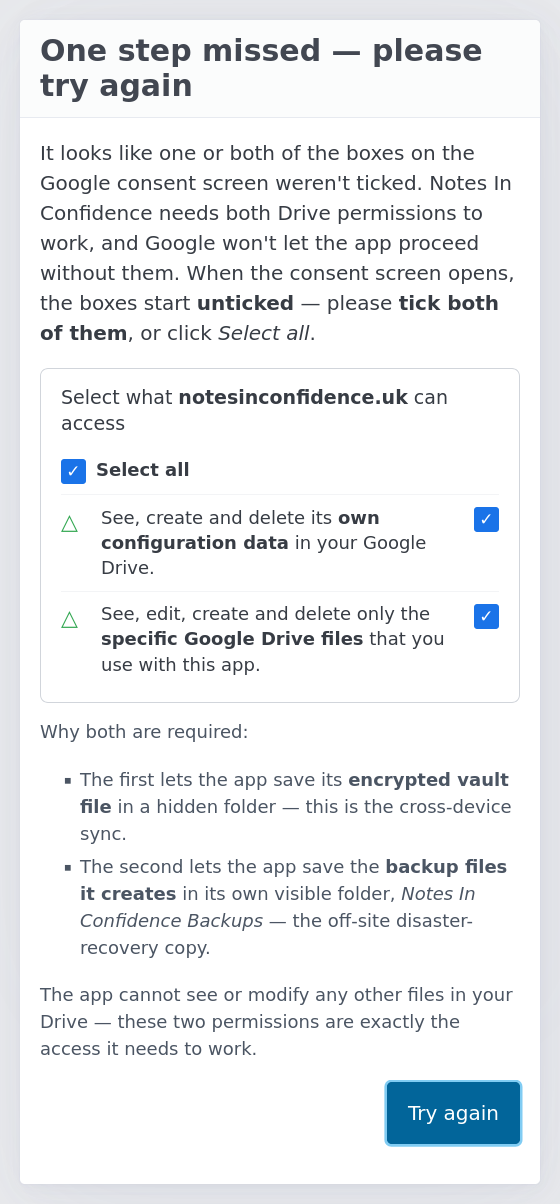
Before Google's consent screen opens, the app shows you a short explainer dialog with a mock of what you are about to see, and asks you to tick both boxes. Google's screen starts with both boxes unticked, and if you only tick one, the app shows you a friendly one step missed dialog and offers to send you back through the consent flow.
You can revoke either permission at any time from your Google Account settings. If you do, the app enters read-only mode on your next unlock. You can still read every note you have ever written, but you cannot create new ones or edit existing ones until you reconnect Drive (or restore from a Local Backup file). The protection is deliberate: a vault that can be edited locally without ever syncing back to Google is one cleared browser away from data loss.
Tick the two consent boxes on the form
Once Google has signed you in and the app sees you do not yet have a vault in Drive, the Choose your vault password step appears. Just before the password fields you will see two tickboxes. Both are required to enable the Create my vault button. They are not boilerplate. They exist because this is free software with no warranty, no support contract, and a deliberately unforgiving security model, and the operator wants you to confirm in writing that you understand both points.
The first tickbox accepts the Terms of Service and Privacy Notice. The second tickbox confirms you understand the specific risks: that a forgotten password destroys your data forever, that browsers can clear storage under some conditions, that malicious browser extensions could in principle break the encryption regardless of your password strength, and that you (not the operator) are the data controller for any clinical content you enter.
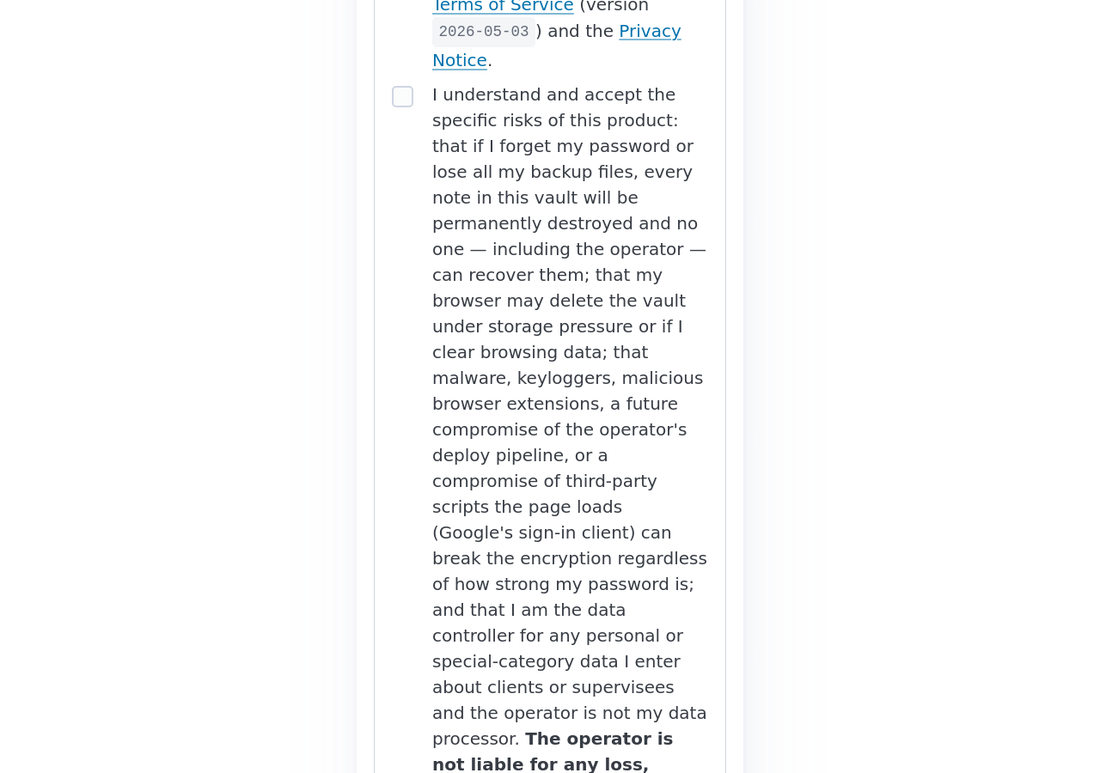
Tick both, and the Create my vault button becomes active.
Before you choose your password, decide where you will keep it
The order of operations matters. Choose where you will save the password before you choose what the password is. A password manager you already use (Chrome's Password Manager, Safari Keychain, 1Password, Bitwarden) plus a paper copy somewhere you keep things you cannot afford to lose. Once both of those are set up and ready, then type your new passphrase into the form. The first save offer that appears after creating the vault is the one to accept.
This sequence sounds fussy. It is the cheapest insurance you will ever buy. There is no password reset; we cannot help you if you forget it. The article I forgot my password spells out exactly what is and is not recoverable.
The four steps
1. Open the app. Click the link to your hosted Notes In Confidence site, then click Open app. You will arrive on the Connect page.
2. Read the pre-OAuth dialog and continue to Google. Click Continue with Google. A short dialog opens that mocks the consent screen you are about to see and asks you to tick both Drive permission boxes when Google prompts. Click Continue to Google.
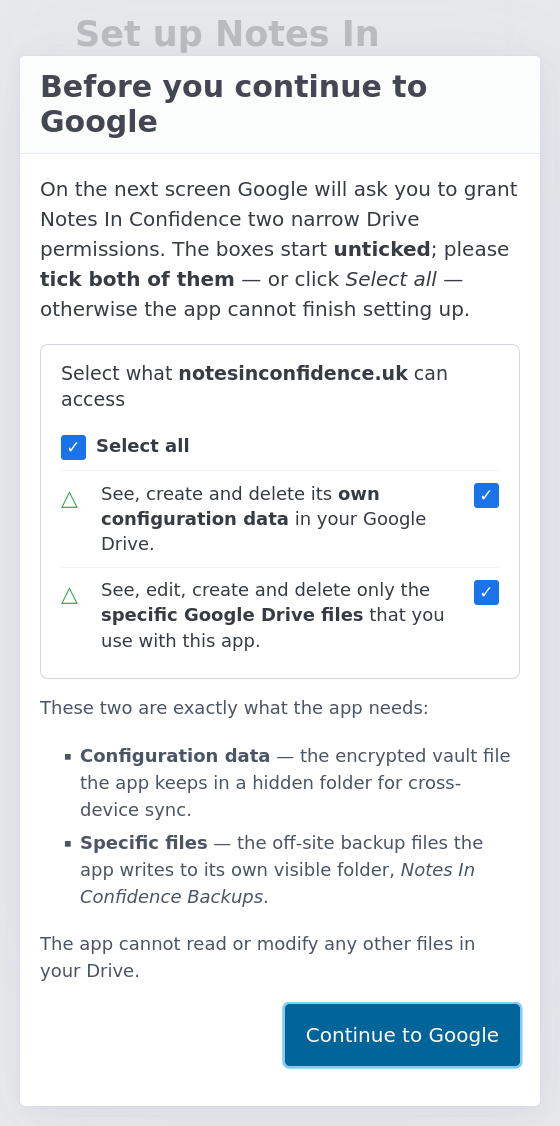
When Google's consent screen opens, click Select all (or tick both individual boxes) and approve. We strongly recommend a personal Google account, not a shared work one.
If you accidentally tick only one of the two boxes, Google sends you back to the app with a partial grant. The app catches that and shows a one step missed dialog explaining what happened, with a Try again button that re-runs the consent flow.
3. Pick a password. If this Google account has never had a vault before, the Choose your vault password step appears. The form requires twelve characters as an absolute minimum. We strongly recommend a passphrase made of four unrelated words rather than a short complicated password. Length is what makes a password resistant to guessing. Something like harbour candle willow argent is far stronger than P@ssw0rd! and easier to type accurately. The first time you submit, Chrome and Safari will offer to save the password; we strongly recommend accepting. Then write it down somewhere physical too, like a sealed note in a drawer at home.
If a vault for this Google account already exists (for example, you set up the app on another device first), Google sign-in will detect it and the screen will instead show Enter your vault password. Type the password you used originally. Your notes appear, decrypted on this new device.
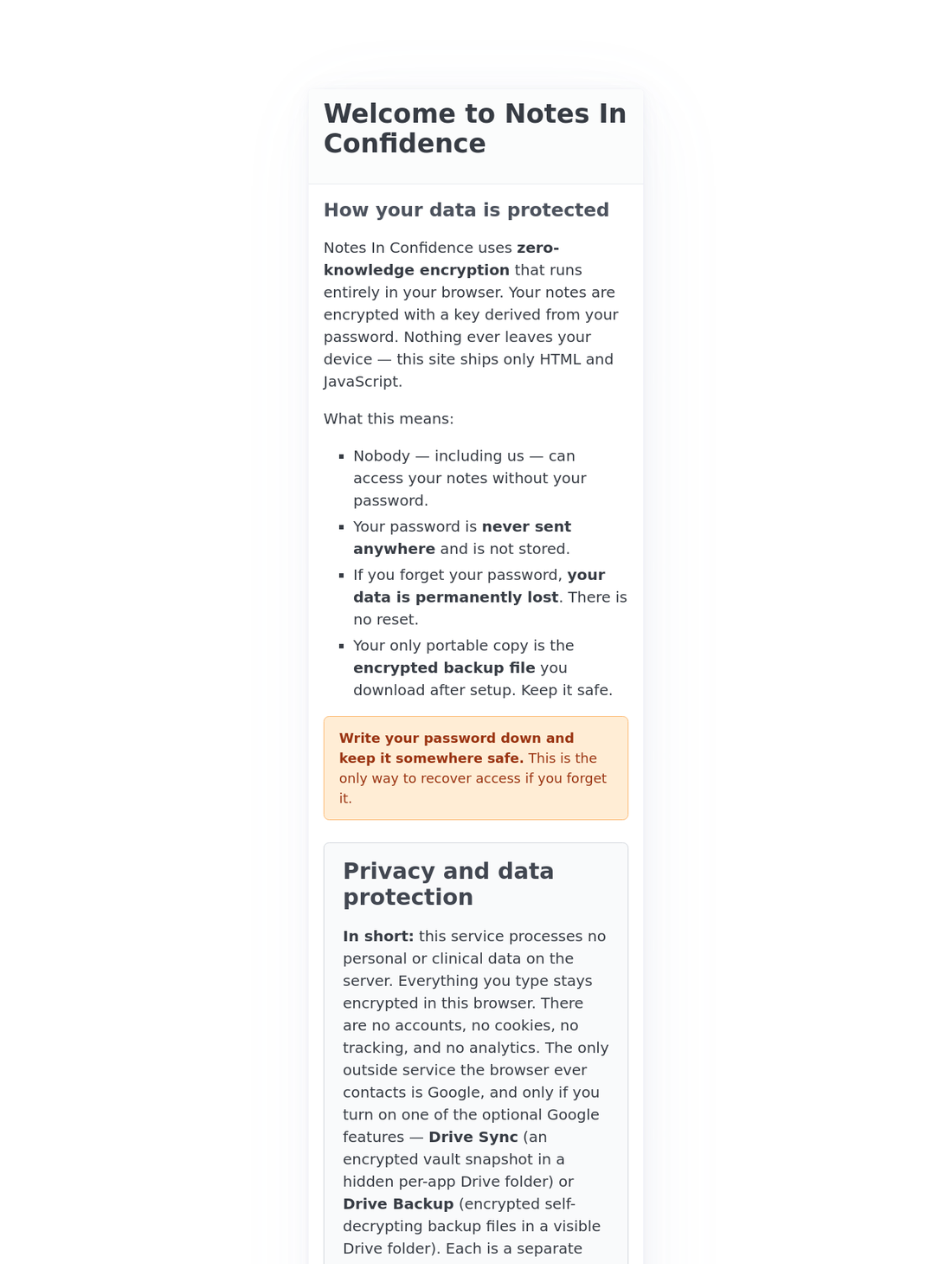
4. Vault is created and the off-site backup runs automatically. When you click Create my vault, the app encrypts a fresh empty vault inside your browser, then uploads the encrypted blob to the hidden folder of your Drive. Immediately after, a Setting up your off-site backup card appears while the app uses the second Drive permission you already granted to create the Notes In Confidence Backups folder and write your first off-site backup into it. This usually takes a few seconds, and there is nothing to click.
If the off-site backup write fails for any reason (a brief network drop, a Drive quirk), an Almost there, your first backup didn't upload card appears with a clear error message and two options: Retry runs the upload again on the same Drive permission you already have; Skip for now sends you on to the dashboard and the persistent backup banner takes over from there until you set it up from Advanced > Backup.
When the off-site backup succeeds, the dashboard loads. You are ready to add your first client.
A 30-second move that doubles your safety net
Drive Sync keeps the vault current across your devices. Drive Backup writes self-decrypting copies to a visible Drive folder every seven days. The third copy, the manual local backup file, lives on your computer's Downloads folder. If your computer dies, those local backup files die with it.
The simplest way to never lose a local backup, with no extra effort from you, is to point your browser's Downloads folder at a folder that already syncs to the cloud. If you already use OneDrive, iCloud Drive, Dropbox, or Drive on your computer, you almost certainly have such a folder. Pointing Downloads there means every backup you ever take ends up safely off your device automatically.
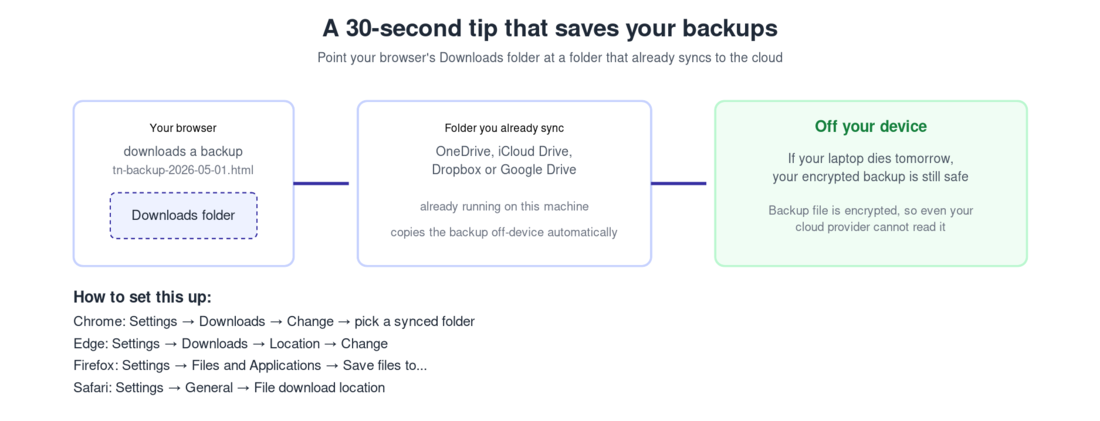
The setting is in your browser's preferences. In Chrome, Settings > Downloads, click Change next to Location, and pick a folder inside your synced cloud folder. In Edge, Settings > Downloads > Location > Change. In Firefox, Settings > Files and Applications > Save files to. In Safari, Settings > General > File download location.
Backups are encrypted with your password, so even if your cloud provider's staff could see the file (which is not how iCloud or Dropbox work in most cases), they could not read what is inside.
What happens straight after setup
You arrive on the dashboard. Two short prompts may appear in sequence. The first asks Do you also work as a supervisor? with two buttons, Not now and Enable supervision mode; this prompt is shown only once per vault creation, so picking Not now simply dismisses it (you can turn supervision on later from Advanced > Supervision). The second prompt points out that you have no clients yet, with a Do not show again tickbox and a button to add your first client.
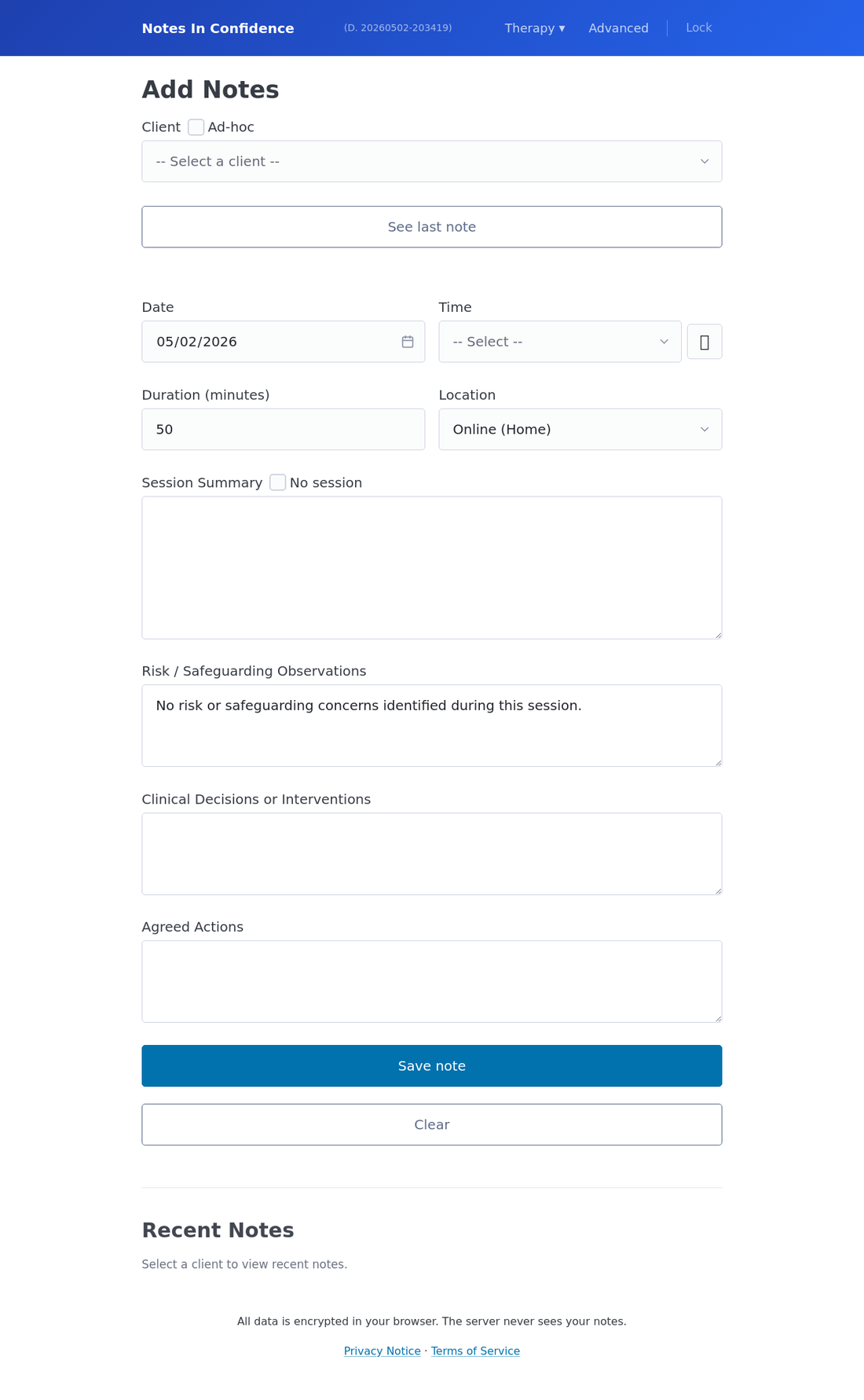
In the background, the encrypted vault has just been uploaded to the hidden app folder of your Drive, and the first off-site backup file has been written to the visible Notes In Confidence Backups folder. Both will be ready to sync to your other devices when you sign in there.
What to do next
Add your first client. The article Add a client and write your first session note walks through the form and the Notes input page.
If the automatic off-site backup didn't fire, open Advanced > Backup, scroll to Drive Backup, and follow the prompts to set it up. The persistent reminder banner across the top of every page will keep nudging you until it is on.
Take a moment to write your password down somewhere safe. We mean this. Belt and braces. A password manager you trust, a sealed envelope, anywhere you keep things you cannot afford to lose.
Install the app locally on this device. Open Advanced > Install and turn Notes In Confidence into a real app icon on your desktop or home screen. Your data becomes harder for the browser to silently evict, the app gets its own window without the browser bar, and it keeps working when you are offline. The article Installing Notes In Confidence on your device walks through the browser-specific steps.