Therapy is rarely a single uninterrupted run. Clients pause for the summer, drop out and come back two months later, take a break around exams, or reach a tidy end of contract that turns into a fresh contract three months on. The app records each of those transitions as a Deactivate or Reactivate event, with a date attached, and uses the resulting timeline in two places: the Statistics page (so paused stretches do not inflate the Unknown count) and the per-client History modal (so you can see exactly when the client was active).
This article walks through the buttons, the History modal, the editing tools, and the small piece of cleverness that quietly cleans up accidental clicks.
The Active and Inactive states
Every client is either active or inactive. A new client starts active. The state is shown next to the title on the client edit page, as a small coloured badge.
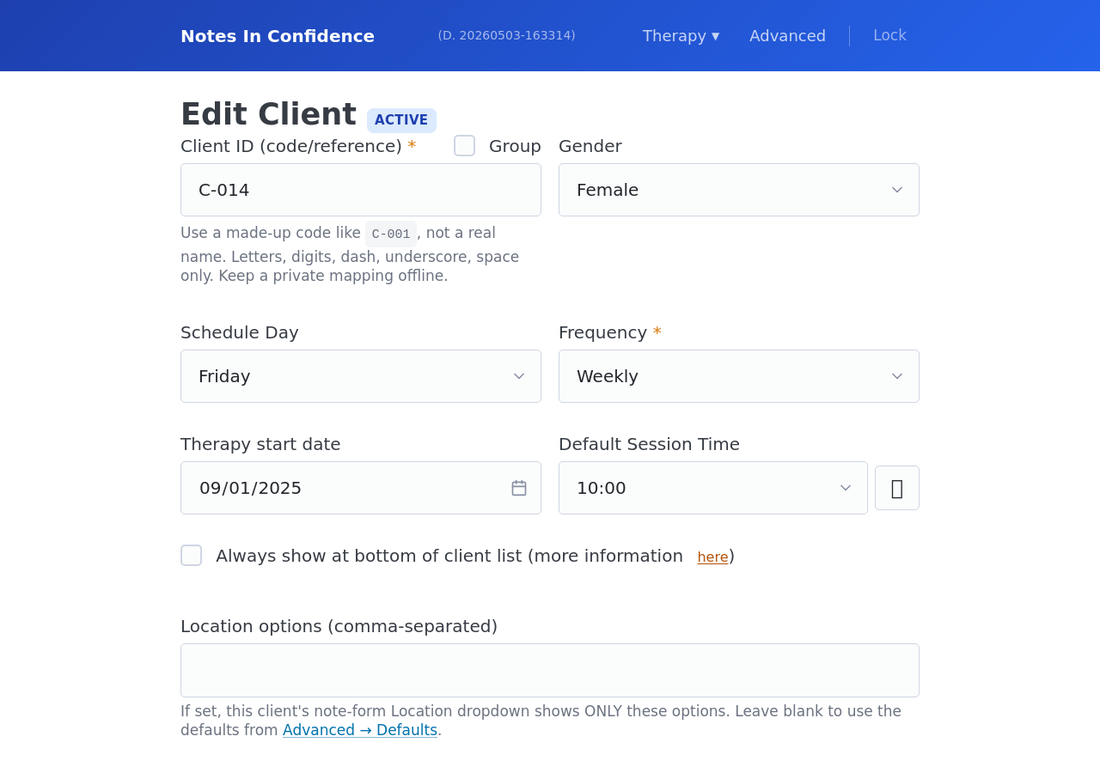
If you have already deactivated this client, the same place shows an Inactive badge instead.
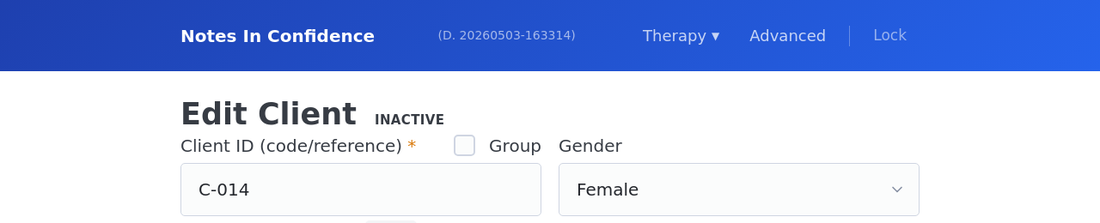
Deactivated clients keep all their notes and all their data; they just do not appear in the Notes-page client dropdown by default. This is the right state for a client who has stopped attending but whose record you may need to refer back to.
Deactivate and Reactivate from the clients list
The two buttons live on the clients list page, under Therapy > Clients. Each row has Edit, Deactivate (or Reactivate), and Delete.
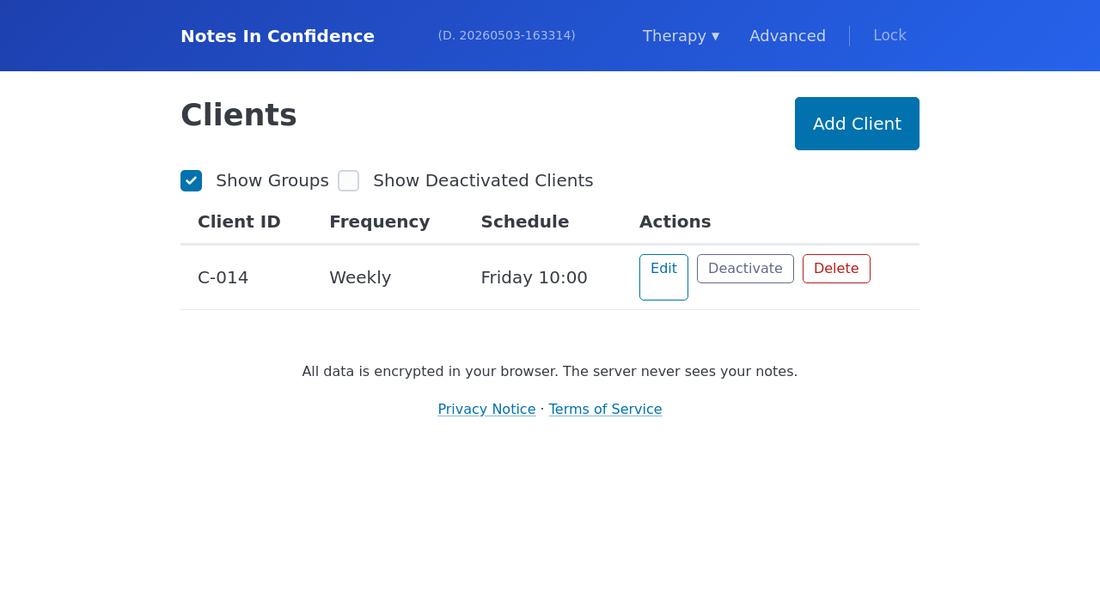
Click Deactivate and the app records a deactivate event with today's date, then flips the client to inactive and shows a small toast confirming the change. Click Reactivate on an already-deactivated client and the app records a reactivate event with today's date and flips the client back. There is no confirmation dialog because the action is reversible — every transition is recorded as a new event in the history, not as an overwrite of state, so clicking the wrong button is one click away from being put right.
To see deactivated clients in the list, tick the Show Deactivated Clients checkbox above the table.
The History modal
Open Therapy > Clients, click Edit on any client, and scroll to the bottom of the form. You will see a View History button.
Click it. The History modal opens and shows the timeline.
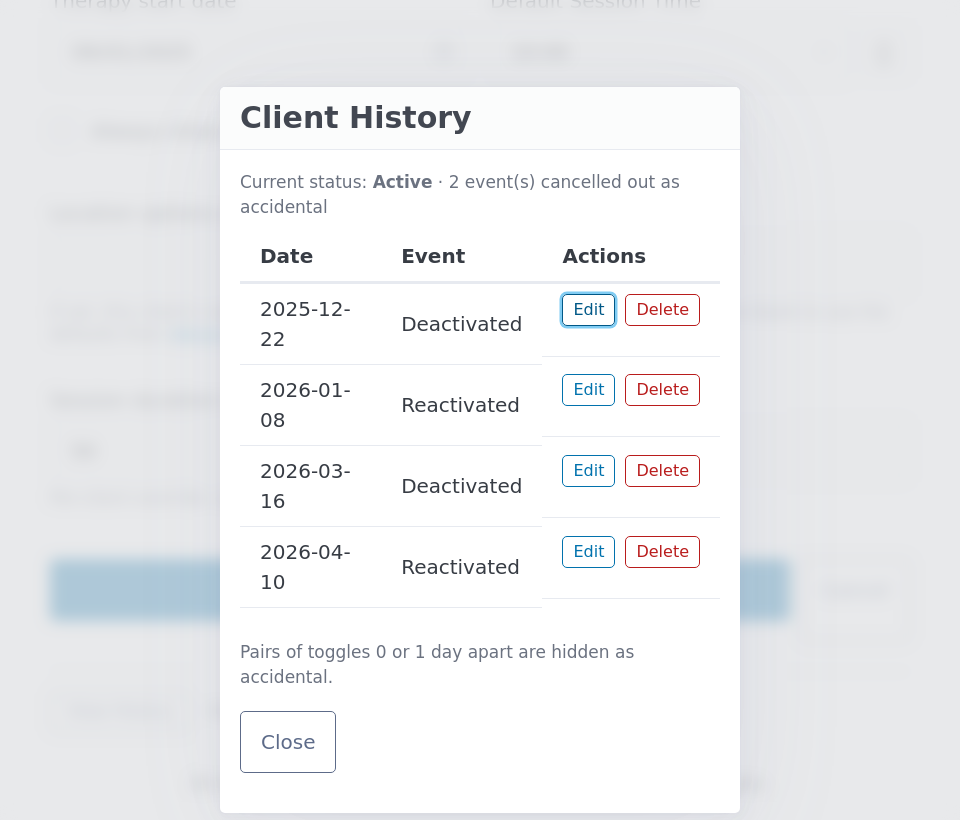
Three things to notice.
The summary line at the top reads Current status: Active (or Inactive) and, when applicable, N event(s) cancelled out as accidental. The cancellation rule is explained below.
The table shows every surviving event with its date, type (Deactivated or Reactivated), and an Edit/Delete pair on the right. The list is sorted oldest at the top, newest at the bottom — the same direction as the underlying timeline.
The footer reminds you that pairs of toggles 0 or 1 day apart are hidden as accidental. That is the cleverness, and is the topic of its own section below.
Editing the date of an event
The most common reason to open the History modal is that you clicked Deactivate or Reactivate today, but the actual transition happened earlier — the client's last attended session was three Tuesdays ago, not today. Click Edit on the event you want to backdate.
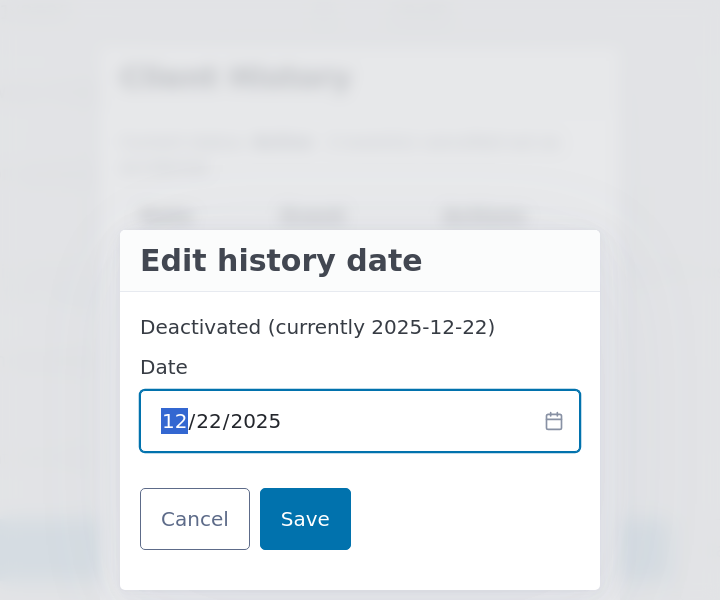
The dialog shows what the event currently records (for example Deactivated (currently 2025-12-22)), with a date picker preset to that date. Change it to the date the client actually paused, click Save, and the modal refreshes with the corrected date.
The form rejects garbage input. Anything that is not a real calendar date in YYYY-MM-DD form is refused, with an error message just under the date input. (Internally the app round-trips the value through Date.parse so that strings like 2025-13-45 cannot end up in storage.)
Deleting an event
If you clicked Deactivate then realised the client did not actually pause at all, click Delete on the event. The event is removed and the client's status is recomputed from whatever events remain.
There is no per-event confirmation prompt. Deletes are intended to be quick because the underlying state is recoverable: a deleted deactivate event simply means there is no longer a deactivation on that date in the timeline.
The accidental-pair rule
Therapists are humans. Sometimes you click Deactivate, immediately notice it was the wrong client, and click Reactivate to undo. The rule that catches that:
A pair of opposite-type events 0 or 1 calendar days apart cancels out and is hidden from the History list.
Same-type events are never cancelled. Two consecutive Deactivates on the same day are kept (because that is a real if redundant repeated state, and silently dropping one would make the cancellation rule disagree with the underlying records). Opposite types more than one day apart are kept (because a real pause and reactivation only a day apart is unusual but possible, and we would rather show it than hide it).
The rule unwinds longer chains in a single pass too. If you accidentally clicked Deactivate twice and then Reactivate twice within a few seconds, the result is no surviving events on either side of that flurry, and the summary line tells you four events were cancelled.
The summary line at the top of the modal always shows the count of cancelled events, so the cleanup is never silent.
How this affects Statistics
The Statistics page in Therapy > Statistics reports a per-client Unknown count: the number of expected sessions where there is no note saved (a missed session, an away day, a session that was not written up). Before client history existed, Unknown counted every gap between scheduled sessions, including the months when a client was not actually in therapy. That made the count for any client who had paused once look much worse than reality.
Now, Unknown excludes any calendar date that falls outside an active interval in the client's history. A client who paused from December to early January does not accumulate Unknown sessions during that gap. The number reads as a real measure of unwritten sessions during active therapy.
If you want the old behaviour back for a particular client (perhaps because the client did attend during a stretch you forgot to mark as active), the fix is to backdate or delete the relevant events in the History modal until the timeline matches what actually happened. The Statistics page recomputes the next time you load it.
What gets backed up and synced
The full History timeline is part of the client's encrypted record. That means it travels everywhere the rest of the client record travels:
It syncs to your hidden Drive folder along with every other change. Adopt the vault on a new device with the same Google account, and the History modal on the new device shows the same events.
It is included in every Local Backup file and every Drive Backup file. Restoring a backup restores the History to whatever state it was in at backup time.
It is recorded in the Recent sync activity panel under the Changes tab, with client_history_event as the entity type and a source tag of local, pull-merge, rotation-adopt, or restore depending on where the change came from. Open Advanced > Drive > Recent sync activity > Changes if you want to retrace what happened to a client's history across devices.
What this does not record
The deactivation history records only the deactivate and reactivate transitions. It does not record:
The reason the client paused. That belongs in a session note (use the No-session tickbox with a reason, or write a brief Agreed Actions line about the planned break).
Notes written during a paused interval. Note dates are independent of the active intervals — the app does not stop you writing a note dated inside a paused stretch, in case you need to record a one-off contact during the pause. Such a note will not contribute to the Statistics calculation as a normal session, but it will be saved.
Anything that happened before the History feature existed. For clients who were already inactive when you first loaded the app, the system seeds a single deactivate event whose date is the client record's last-modified timestamp — a best-effort attribution that you can edit to the correct date.
A small ritual that pays off
Every time you click Deactivate on a real pause, take ten seconds to open the History modal and backdate the event to the date of the client's last actual session. Same when you click Reactivate at the start of a fresh contract: backdate to the first session of the new contract.
Two minutes once, every six months. The Statistics page rewards the discipline by reading correctly for that client forever after.