There are two screens you will spend most of your time on: the client form (the one-off setup for each person you see) and the dashboard (where you write notes after each session). This article walks through both, and explains a handful of fields that look optional but actually do useful work in the background.
Both screens are reached from the Therapy dropdown in the navigation bar at the top: Clients for the list, Notes for the dashboard.
The password rule. Your password is the encryption key. We do not have it, Google does not have it, no one but you does. There is no reset link, no security question, no support process that recovers it. If you forget your password and have no backup file under a password you do remember, every note you save below is permanently gone. Save the password to a manager and write it on paper.
Adding a client
Open Therapy > Clients and click Add Client. The first time, the dashboard will show a friendly prompt nudging you here.
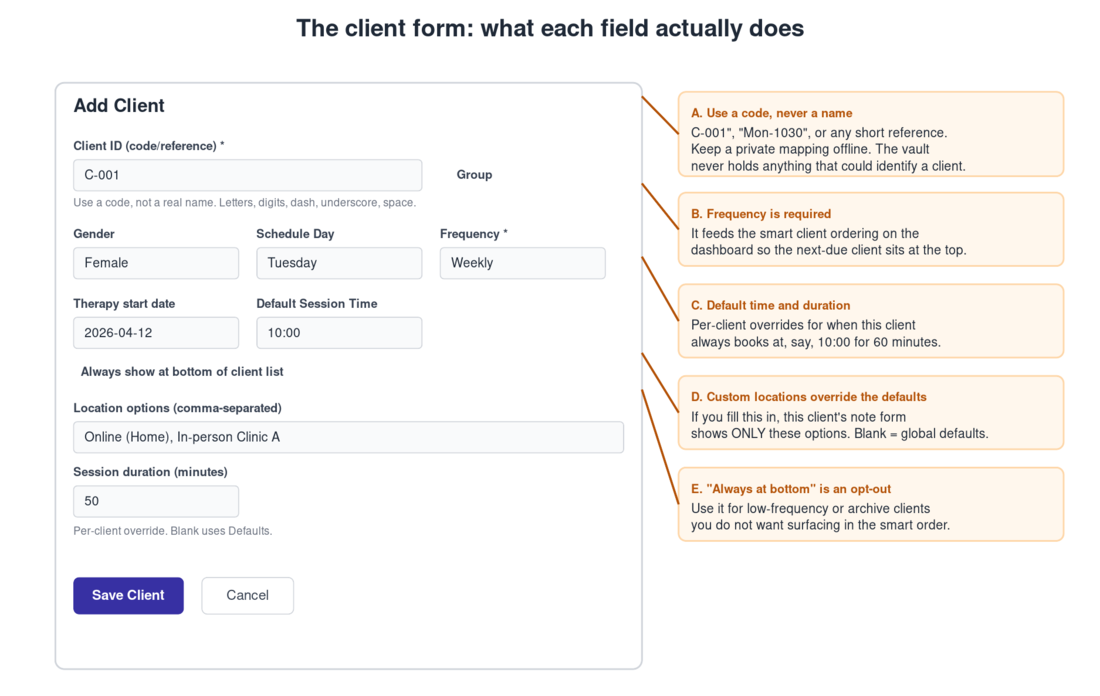
The empty form looks like this:
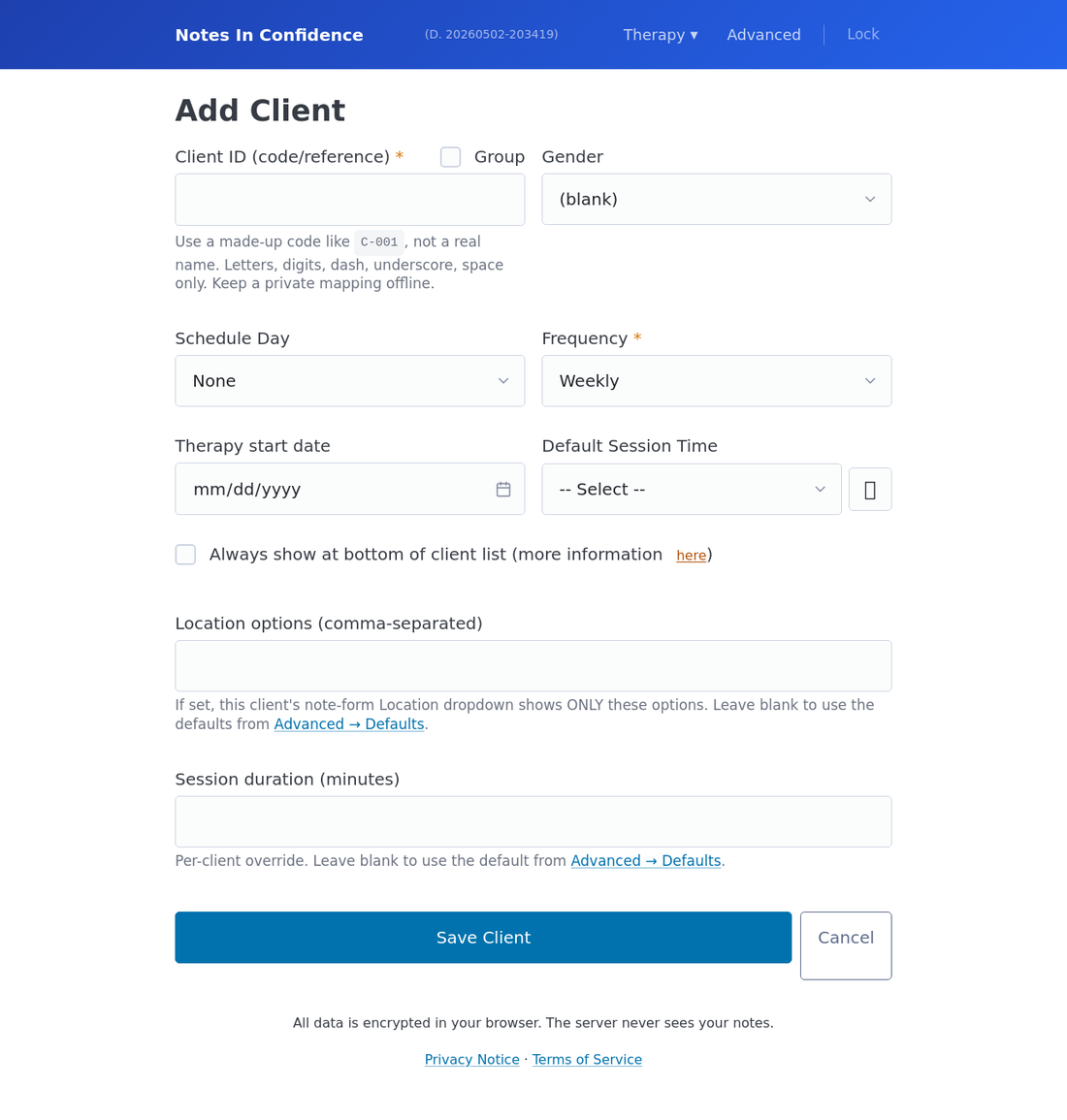
And once filled in:
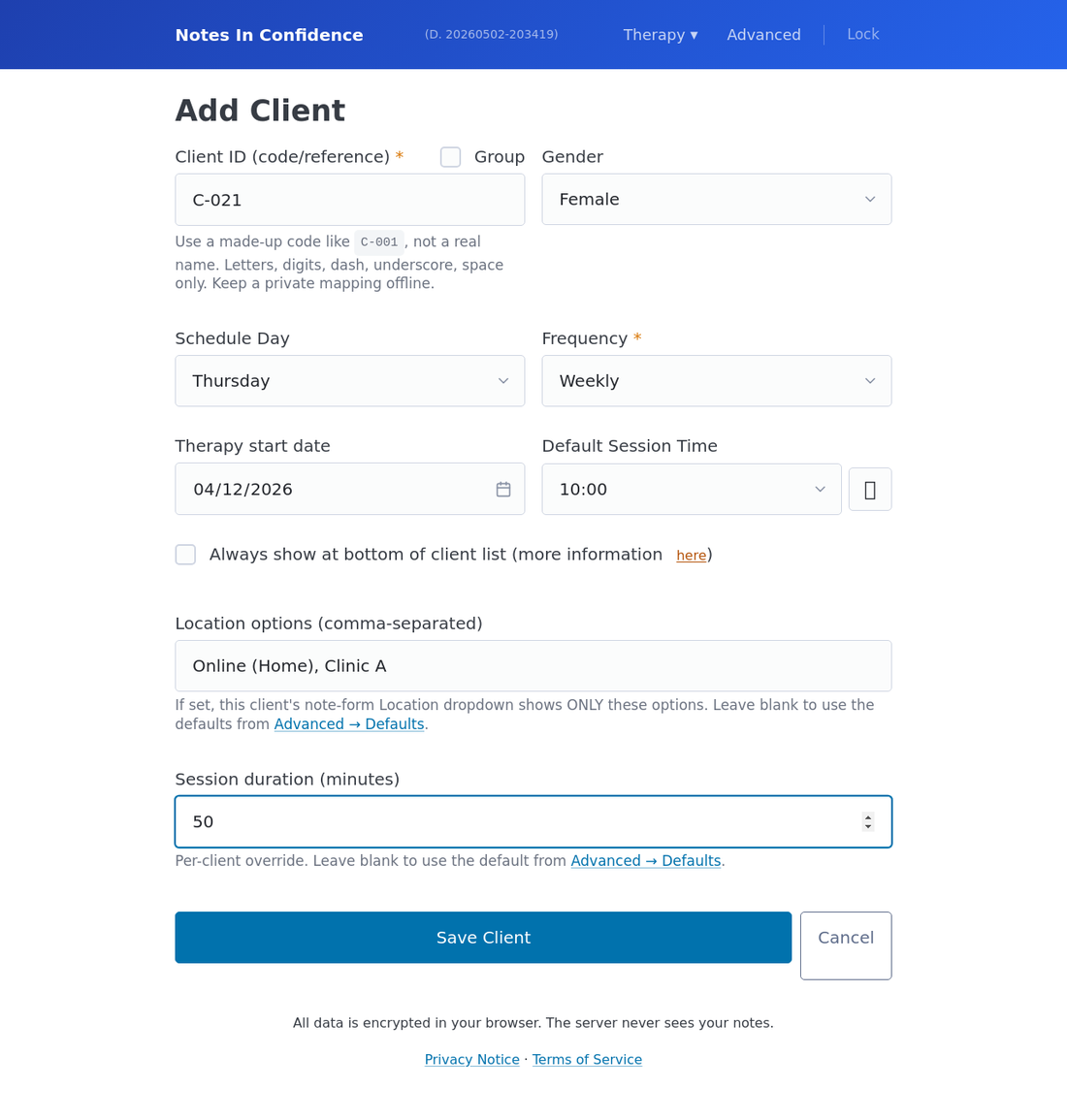
Use a code, never a name. The Client ID field accepts letters, digits, dash, underscore, and space, up to 64 characters. Pick something you can recognise but that means nothing to anyone else: "C-001", "Mon-1030", "TUE-A". The vault stores nothing that could identify a client, by design. Keep your private mapping (code to real name) somewhere offline, like a paper book in a locked drawer.
If the "client" is actually a group, tick Group. The Gender label is replaced by Group Description, where you can write a short note about who is in the group. Statistics treat groups separately if you want to filter them.
Frequency is required and feeds the smart ordering on the dashboard. Weekly, Fortnightly, Monthly and Ad-Hoc all behave the way they sound. Pick Ad-Hoc for clients you see irregularly; the dashboard will still let you write notes for them, just without nudging you when one is "due".
The Schedule Day and Default Session Time set the regular slot. If a client is always at 10:00 on Tuesdays, set those, and the new note form will pre-populate when you select that client. The clock icon next to the time selector lets you enter a non-standard time directly if your slot is, say, 10:45.
Therapy start date is for your records. Statistics use it for tenure-based summaries.
The Session duration field is a per-client override. If your global default in Advanced > Defaults is 50 minutes but this client books 60, set 60 here and the dashboard will pre-fill 60 every time you pick this client. Leave it blank to use the global default.
Location options is another override. The dashboard's Location dropdown normally shows the global defaults set in Advanced > Defaults. If you set a comma-separated list here for a single client (for example "Online (Home), Clinic A"), the dashboard's Location dropdown shows only those when this client is selected. Useful for clients who alternate between specific physical rooms.
Always show at bottom of client list is an opt-out from the smart ordering. It pins this client below everything else, regardless of when their next session is. Use it for archive clients you keep for retention but no longer actively work with.
When you click Save Client, the record is encrypted in your browser and committed to your local vault. About thirty seconds later it is pushed to your hidden Google Drive app folder, encrypted, in the background.
Writing your first session note
Go to Therapy > Notes. This is the dashboard where every note is written.
Pick the client from the dropdown. The list is ordered intelligently, with whoever is most likely to need a note next at the top.
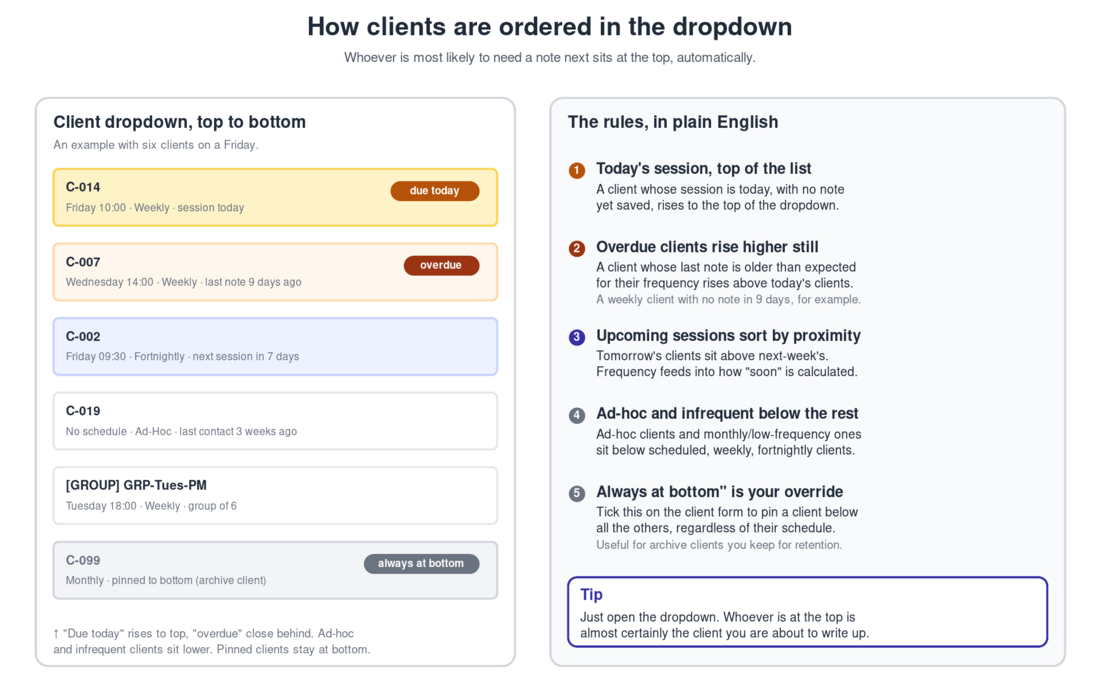
Here is the same logic playing out in the live dashboard, with the client dropdown open:
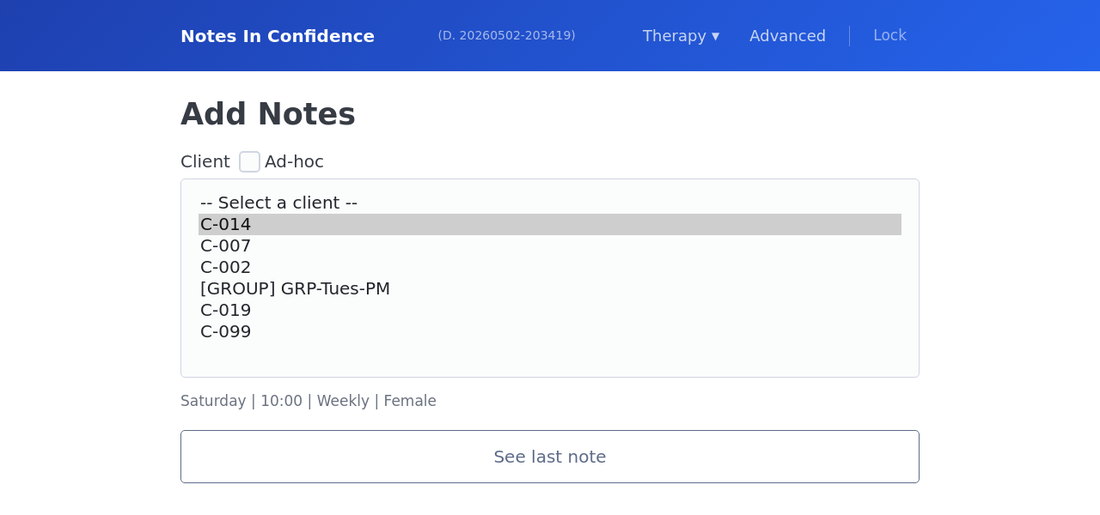
Smart ordering takes account of frequency, schedule day, the time since the last note, and any session that is due today. A client whose session is today and who has no note saved yet rises to the top with a due now tag. A client who is overdue rises higher still. Ad-hoc and low-frequency clients sit below the scheduled ones. The Always at bottom override puts a client below everything else regardless.
If you want to write a note for someone who is not in your client list (a one-off contact, or before you have created the formal record), click the small Switch to Ad-hoc button just below the page heading. The client dropdown is replaced by a text field where you type a short identifier in its place. When you are done with ad-hoc mode, click Exit Ad-hoc (which appears in place of the Switch to Ad-hoc button) to go back to the normal client picker. Ad-hoc notes are kept separately and can be filtered in or out on the Manage Notes and Statistics screens.
Date and time pre-populate from today's date and the client's default time. Adjust them if you are writing up a session from yesterday. Duration pre-populates from the client's per-client setting (or the global default), and Location from the same logic.
If a session did not happen, tick No session in the Session Summary header and pick a reason: missed, cancelled, away, illness, or holiday. The session row is still recorded so your statistics reflect it, but the body fields are skipped.
The four sections of a note
The body of every note has four sections, each in its own textarea.
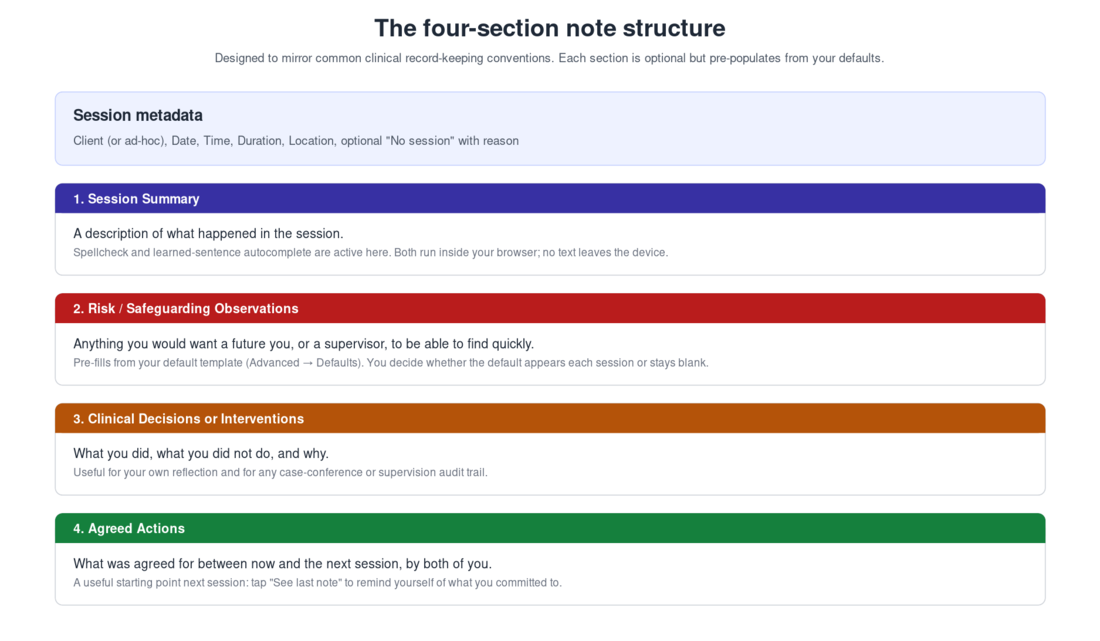
A populated note looks like this in the live app, with the four sections clearly visible:
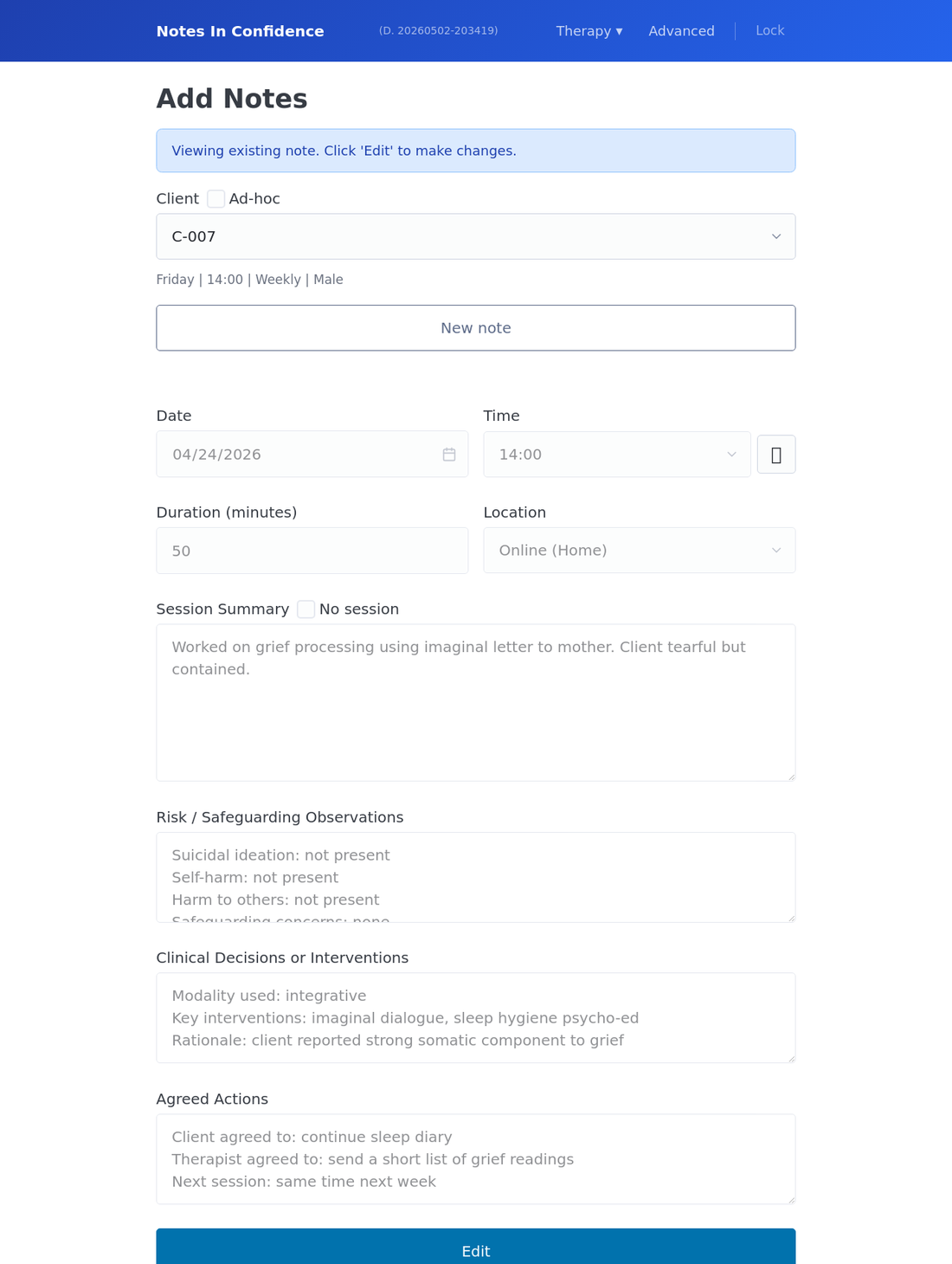
Session Summary is what happened in the session. Risk and Safeguarding Observations is anything you would want a future you, or a supervisor, or an audit, to be able to find quickly. Clinical Decisions or Interventions is what you did and why. Agreed Actions is what you and the client agreed for between this session and the next.
The Risk, Interventions, and Actions sections all pre-fill from your default templates if you have set them in Advanced > Defaults. Most therapists find that a short prompt list ("Suicidal ideation: not present / present, see below") in the default template is more useful than a blank field, because it nudges you to comment on each item rather than skipping past it.
Two helpers run on every textarea, both inside your browser:
The spellcheck dictionary is bundled into the app and runs locally. Browser-native spellcheck is deliberately disabled on these fields because some browsers (Chrome's Enhanced spell check, Edge's Microsoft Editor) send what you type to remote servers. You can switch the in-app spellcheck off in Advanced > Privacy if you prefer no spellcheck at all, but you cannot fall back to the browser's version.
Autocomplete suggests sentences and phrases learned from your own past notes. The first time you use the dashboard, it back-fills from every existing note summary so you get suggestions immediately rather than having to save a few notes first. Press Tab or the right arrow to accept a suggestion. The dictionary is per-device and never leaves your browser.
The dashboard heading changes with what you are doing
The big heading at the top of the dashboard is not fixed — it tells you what mode the form is in:
- Client Quick Dashboard - New Note — the default, when you arrive on the page or just clicked New note.
- Client Quick Dashboard - Ad-Hoc - New Note — same, but you have clicked Switch to Ad-hoc.
- Exploring Notes - Viewing — when you have loaded a previously-saved note (via See last note, by clicking a row in Recent Notes, or by following a Previous/Next note link). The form is read-only until you click Edit.
- Exploring Notes - Editing — same as above but you have clicked Edit.
- Exploring Notes - New Note — when you have started a fresh note while previously viewing a saved one. Cancel takes you back to the note you were viewing.
The small button next to the heading also changes. In the New Note state it reads Switch to Ad-hoc. In Exploring Notes states it is replaced by a prominent blue Back to Dashboard button that returns you to a clean New Note state without saving.
Walking a client's notes — the Previous / Next / See other notes row
When you have a saved note loaded into the form (you clicked See last note, or clicked a row in Recent Notes, or arrived here from the Manage Notes preview drawer), a small row of three links appears just under the client's schedule line:
Previous note - See other notes - Next note
Previous note and Next note step backwards and forwards through that client's notes in date order. See other notes jumps you to the full list on Manage Notes filtered to this client. You do not lose your place — the form re-pins to whichever note you land on.
Clicking a row in Recent Notes also produces a brief Viewing note from
Saving, editing, and seeing the last note
Click Save note at the bottom. The note is encrypted and persisted, and the Recent Notes list below the form refreshes.
The See last note button to the right of the client dropdown loads the most recent note for the selected client into the form in view mode — the fields are read-only until you click Edit. Useful at the start of a session to remind yourself what was agreed last time. From there, New note starts a fresh note for that client, Edit unlocks the loaded note for changes, and Cancel drops you back without writing anything.
New note is smart about timing. If the client's next scheduled slot (their schedule day and time) already has a note saved against it, the form falls back to today's date and the current time instead of re-pinning you to that filled slot. This is the unscheduled / emergency-session path: you click New note, and the form is ready for an extra contact you have just had, with no need to clear the pre-filled date and time by hand.
The Cancel button at the bottom of the form is the undo button for whatever gesture you just made. Three behaviours, depending on context. If you are editing a saved note, Cancel discards your unsaved typing and reloads the saved version. If you clicked New note on top of a viewed note, Cancel takes you back to that note. On a fresh form, Cancel wipes the body fields and re-populates the date, time, location and templates from the schedule defaults. In every case a small Cleared toast appears briefly at the top of the page so you can confirm the click took effect, even if the Cancel button itself has scrolled out of view.
A small detail on the time field. If you need an off-grid time (10:45, 14:08), click the clock icon next to the time dropdown to switch to a free-form time input. The field pre-fills with whatever was selected in the dropdown, so you can pick a near time and nudge from there. The clock icon is hidden in view mode (looking at a saved note) and once you are already in custom-time mode, where it would be redundant.
If you save a note for a client and then realise you wrote in the wrong section, you can re-open the saved note from Therapy > Manage and edit it.
When the form is greyed out: read-only mode
You may, occasionally, find every form on the dashboard greyed out and the Save button disabled. A banner at the top of the page will tell you the app is in read-only mode. This is not a bug.
Read-only mode kicks in when Google Drive sync is broken: you have revoked the app's Drive permission in your Google Account, your token has expired and silent re-auth failed, the network keeps dropping, or the Drive vault file has been deleted. Editing is paused so that work you do does not silently exist on this device alone, ready to be lost the next time the browser is cleared.
To get back to full read-write, open Advanced > Drive and click Reconnect Google account. If you cannot reconnect Google for some reason, you can also restore from a Local Backup file via Advanced > Backup > Restore from backup. Either route re-enables the forms.
A few small things that pay off later
Set sensible defaults in Advanced > Defaults before you start adding clients. Default duration, default location list, and the default templates for Risk, Interventions, and Actions all save you typing across every note.
Take a backup after a busy day. Advanced > Backup, Download backup now. The session of writing notes you just did represents real work; it is worth thirty seconds to make sure it is not only on this device.
Use Manage > Statistics to spot patterns. The date filters and the include deactivated, ad-hoc, groups tickboxes let you cut your data in different ways, including for supervision purposes if a supervisor asks for an aggregate view.
When a client pauses and restarts therapy, use Deactivate and Reactivate on the clients list to record each transition. The article Tracking when a client was active covers the History modal, backdating events, and how paused stretches are excluded from the Unknown count in Statistics.