A vault that stays unlocked is a vault one open laptop lid away from being read by the wrong person. Notes In Confidence has three layers of protection against that: a manual Lock button, a 14-minute idle warning with a 60-second grace, and a hard auto-lock at 15 minutes. All three end the same way: the encryption key is wiped from memory and you have to type your password to read anything again.
This article covers the three layers, what counts as activity, what happens to a half-typed note when you are auto-locked, and the cross-tab behaviour that catches some people by surprise.
The Lock button
The Lock button lives at the far right of the navigation bar, on every page once you are unlocked.

Click it and three things happen, in order. First, the app asks Drive Sync to flush any pending push so an edit you just made cannot be silently lost. The flush has a 15-second cap so a hung connection cannot keep you waiting indefinitely. Second, the in-memory encryption key is wiped. Third, the page redirects to the unlock screen.
If your last keystroke was less than half a second before you clicked Lock, the flush usually completes well inside the cap. If you are on a slow connection and the cap expires, the local edit stays on this device and pushes again the next time you unlock. Nothing is lost; sync just catches up later.
The idle warning and the auto-lock
If you walk away without clicking Lock, two timers run in the background. They are reset by any keystroke, click, or mouse move on any page of the app, including supervision pages and the Advanced settings.
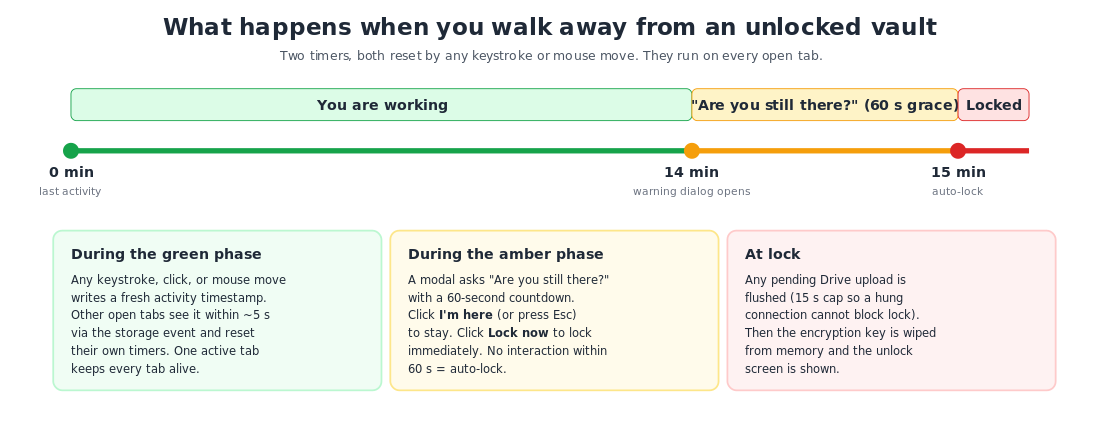
At 14 minutes of no activity, a modal opens:
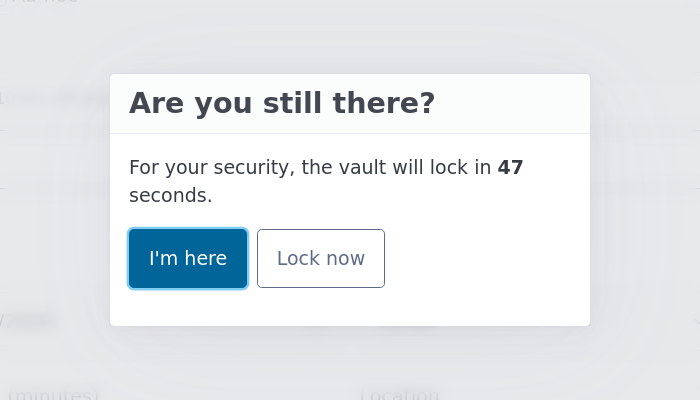
You have 60 seconds to confirm you are still there. I'm here dismisses the modal and resets the timers. Lock now locks immediately. Pressing Escape is treated as I'm here, so a sleepy fingertip on the keyboard will not accidentally lock you out mid-thought. Sixty seconds with no interaction, and the auto-lock fires.
At lock time, the same flush-then-wipe sequence runs as the manual Lock button. The 15-second flush cap matters more here because by definition there has been no recent activity, so a stale Drive token may need to be silently refreshed. If the silent refresh fails, the lock still proceeds; the local edit stays in this browser and pushes on next unlock.
What counts as activity
The activity timestamp is updated on any of: keystrokes, mouse movement, clicks, scroll events, and touch events. The write is throttled to once every five seconds so a rapid typist does not trash localStorage with a hundred writes a second. Only your own keystrokes, clicks, scrolls or touches count — a Drive sync push running in the background, or any other automatic process, does not reset the timer because none of it is human input.
What about multiple tabs?
You cannot have more than one unlocked tab of the app at a time. The first tab that unlocks holds a browser-level lock; any second tab you try to open is redirected to the Your vault is already open page until the first one releases the lock. The article Only one tab at a time explains that page in detail.
So there is only one idle timer to worry about: the one running in the tab where your vault is open. Closing other tabs of the site, or opening the landing page in a second tab, has no effect on it.
Closing the tab while sync is still in flight
There is a small detail about closing the tab. Saves go to your local IndexedDB immediately, but the push to your hidden Google Drive folder is debounced about thirty seconds after the last edit. If you try to close the tab while that thirty-second window is still open — or while a push is actively in flight, or has just errored — the browser shows its native Leave site? dialog. Cancel gives the engine a few seconds to finish; Leave still keeps the edit in this browser's IndexedDB but means it will not push to Drive until the next time you unlock here.
The idle force-lock path described above and the Danger Zone delete flows both deliberately suppress this prompt — you are not asked to confirm an action you already confirmed. Reload on the yellow update banner also flushes pending sync first so the prompt does not fire on that path either. Every other route to closing the tab (Cmd-W, the browser's × on the tab, refresh, navigating away) still shows the prompt as the last line of defence. The article The "Leave site?" prompt when sync is still in flight covers it in more detail.
The Firefox restart catch
Firefox has a "Open previous windows and tabs" setting that restores not just your tabs but the session storage that lived inside them. That would, in principle, let a closed and reopened browser bring back an unlocked vault, even if you closed the lid the night before. The idle-lock module guards against this on every page load. It reads the last activity timestamp from localStorage, which Firefox also persists, and if more than 15 minutes have passed since that stamp, it force-locks before the page paints. So the worst case from this setting is that you see the unlock screen instead of your dashboard.
What you can change, and what you cannot
The 14-minute warning and the 60-second grace are not user-configurable. Reasonable people have asked us to make them shorter; nobody has ever asked us to make them longer. We have left them as they are because making them user-tunable would mean users would tune them up and weaken the very protection they exist to provide. The trade-off is the small irritation of seeing the warning during a long supervision session where you are listening more than typing. Click I'm here and continue.
What to do next
If you are returning from a long break and the unlock screen will not let you back in, I forgot my password explains the only way out: restoring from a backup file taken before the change, or starting fresh.
If the form is greyed out after you unlock and a banner says the vault is in read-only mode, Resolving the read-only banner covers what each cause looks like and how to clear it.